Party-Wall Cockpit — The Case Screen (reference)¶
This is the core reference for the case screen — the page you open when you click a case (its address at the top, a reference like PW-EZNMGSDP beside it). Everything you can do to a live case lives here: read its state, run a stage, answer an approval, record what happened. Keep it open while you work; it lists every button, what it does, whether it is confirm-gated, and whether it can be undone. For a first walk-through instead, start with the Quick Start.
The single idea to carry through every button on this page: Record ≠ serve. Almost every action here records a fact, saves a draft, or queues an intention — it does not send anything to a neighbour, a client, or a bank, and — with a single exception (Record service, see §6) — it does not start a statutory clock on its own. The only actions that cause real outside effects are the Run stage launchers, and those always pause at an approval gate first.
1. What the case screen is¶
The screen has two columns.
- Left work column (wider) — where you do the work: the drawing-analysis reading, the checklist for the current stage, and the case documents.
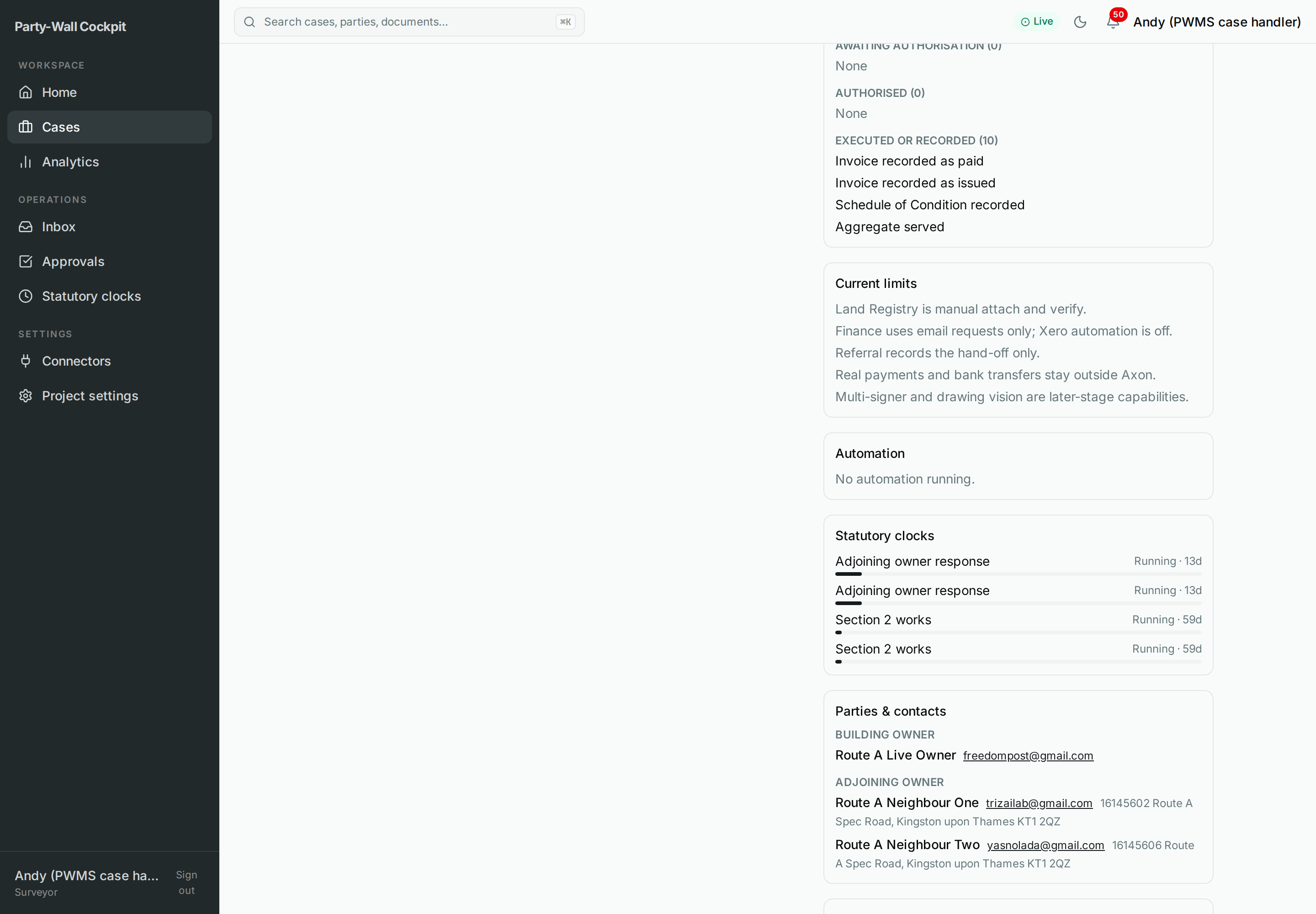
- Right rail (narrower) — where you read the state: Operator context, External interactions, Current limits, Automation, Statutory clocks, Parties & contacts, and Fees & invoicing.
At the very top sits the case header (address, reference, building owner, works and sections chips, service level, mandate date) with an SLA badge and a status pill. Directly beneath the header is the stage track (a metro-line of stages) and the Quick actions bar.
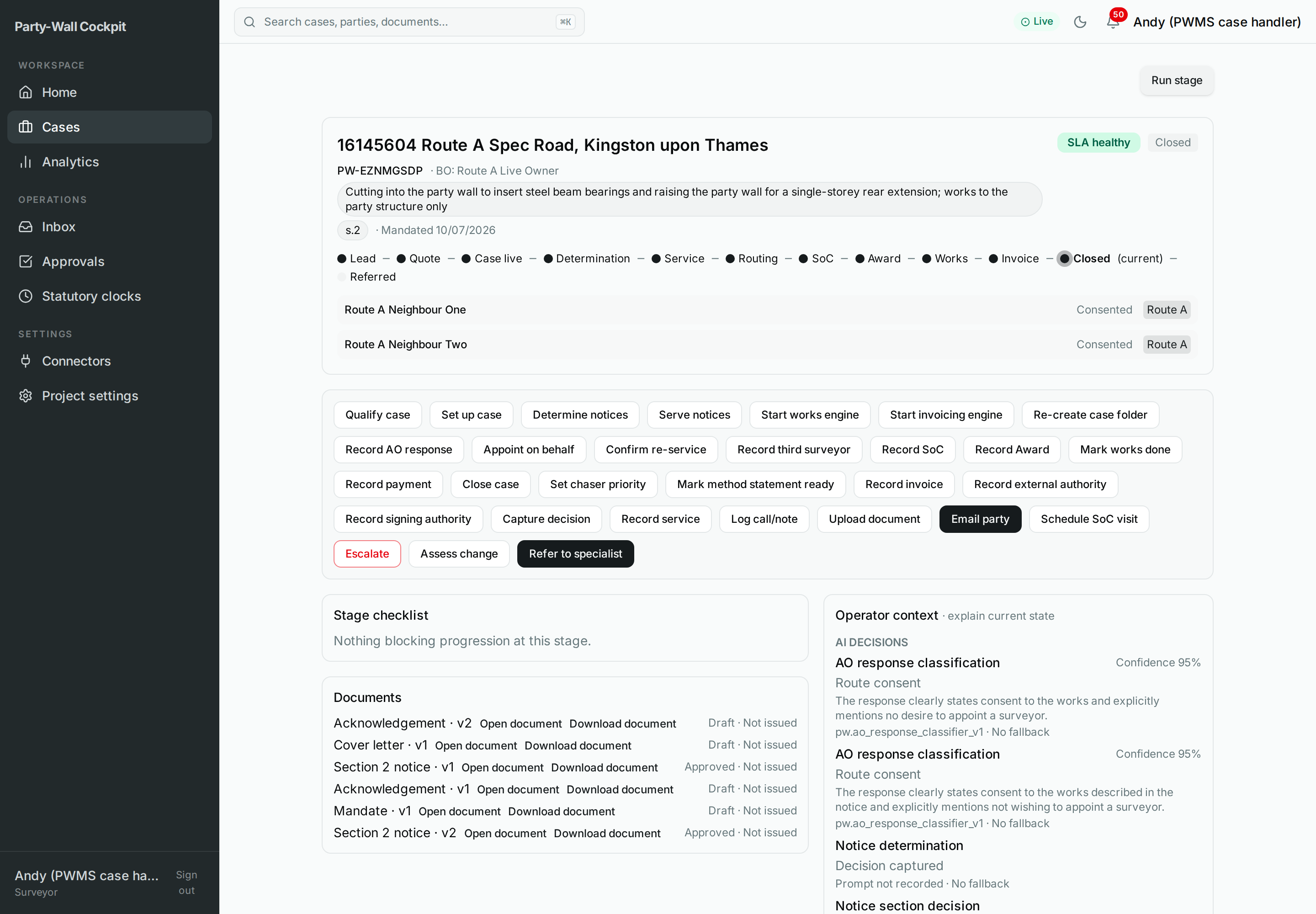 The case screen for a live case: header and stage track at the top, Quick actions beneath, work column on the left, read-only rail on the right.
2. Roles and access¶
Your role is Surveyor (Operator); the sidebar shows your role as Surveyor beneath your name. (The name above it — for example Administrator on the demo account, or Andy on yours — is the display name of the account, not a role. There is only one operator role on this console.)
| What you see | When |
|---|---|
| The full Quick actions bar and every dialog | You are signed in with write access (the normal operator state) |
| No Quick actions, plus a banner "Read-only mode — write commands are disabled." | Your session is read-only |
| "No access to the Party-Wall project. Contact an administrator." | Your account is not attached to the Party-Wall project |
Note
Read-only does not hide the case — you can still read every panel, badge and document. It only removes the buttons that change something. If the actions bar is missing and you expected it, check for the read-only banner first, then re-sign-in.
Each individual button also greys out while a command is in flight (a previous click is still being processed). That is normal — wait a moment and it re-enables. See Troubleshooting if it stays grey.
3. Where it is in Cockpit¶
Every panel on the screen, what it shows, and the values you may see:
| Panel | Shows | Values you may see |
|---|---|---|
| Case header | Address, reference / case id, building owner, works chip, sections chip, planning ref, service level, mandate date, plus SLA badge and status pill | SLA: SLA healthy / SLA at risk / SLA breach. Status: Prospect / Live / Closed / On-Hold / Abandoned / Referred. Service level: Notices only / BO surveyor / Agreed surveyor / Hourly rate |
| Stage track | The metro-line of stages plus a side lane per adjoining owner (their state, route, chasers, whether served) | Stages Lead … Referred; AO states; Route A–D |
| Quick actions | The context-aware buttons (only with write access) | Depend on stage, status, parties, and whether a drawing analysis exists |
| Requires your approval | The approval gates waiting on you (see §6, group F) | Pending / Awaiting context / Approved / Rejected; gate types include Qualification, Route confirmation, Serve, Notice section, BO approval, Quote send, Award service, Client-invoice send, Closing communication |
| Drawing analysis | The system's reading of the drawings: recommendation, confidence %, threshold %, reasoning, evidence, rules | Confidence 0–100; threshold default 70% |
| Stage checklist | The tick-list for the current stage; blockers shown in red "— blocks progression" | Done ✓ / open ◻; empty = "Nothing blocking…" |
| Documents | The case documents (type · version), each with Open / Download, plus approval and issue status | Types: Notice s1/s2/s3, s6, Award, Invoice…; approval Draft / Pending review / Approved / Rejected / Superseded; issue Not issued / Issued / Withdrawn |
| Operator context | The "explain the current state" panel, with eight sub-groups (see below) | Workflows & waits / AI decisions / Prompts / Approval decisions / Delivery / Escalations / Payment / Change assessments |
| External interactions | Anything that touches the outside world, grouped by stage | Prepared / Awaiting authorisation / Authorised / Executed or recorded (up to four each) |
| Current limits | Five plain statements of what the system does not do yet | See §9 |
| Automation | The live workflows for this case, with controls | Badge Failed / Paused / running; Pause vs Retry / Investigate / Skip / Continue manually |
| Statutory clocks | The statutory time-limits running on this case | Types: AO response / Appointment on behalf / Section works / s8 access / Award appeal or validity / Quote validity; Running / Met / Expired / Superseded; ≤7 days shown red |
| Parties & contacts | Building owner and adjoining owners: name, email (click to mail), phone, address | Two groups |
| Fees & invoicing | Fee (ex-VAT) plus invoices (type, due, amount, status) | Client / Self-bill; Draft / Payable / Paid |
| Correspondence / Timeline / Notes tabs | Timeline of events, correspondence log, and Notes | Notes is a placeholder — "available after INC-5" |
| Run stage (header button) | Opens a workflow picker for this case (see the disambiguation in §6) | Only with write access |
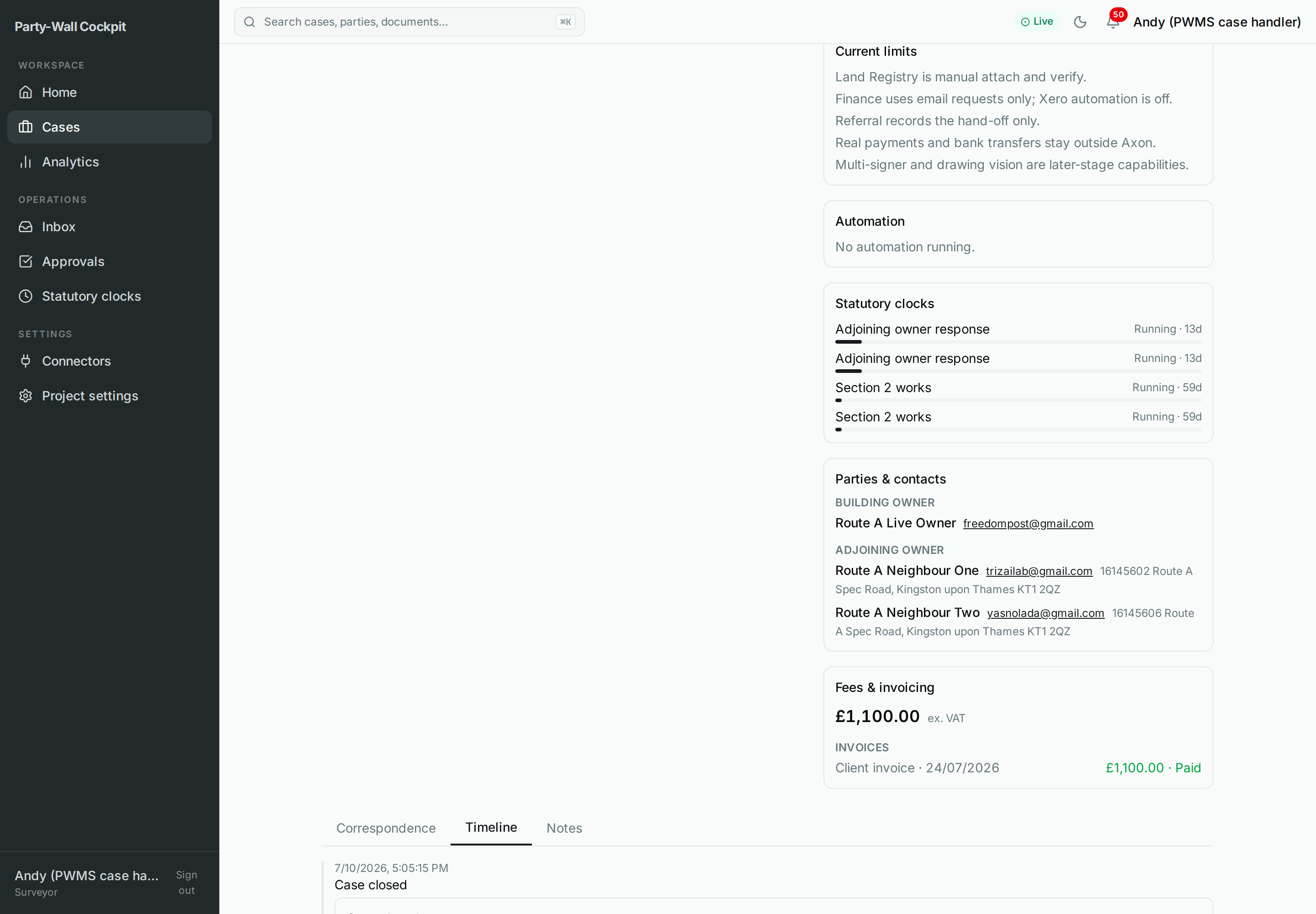 Parties & contacts: the building owner and each adjoining owner. Email addresses are click-to-mail links; the Cockpit does not send from here.
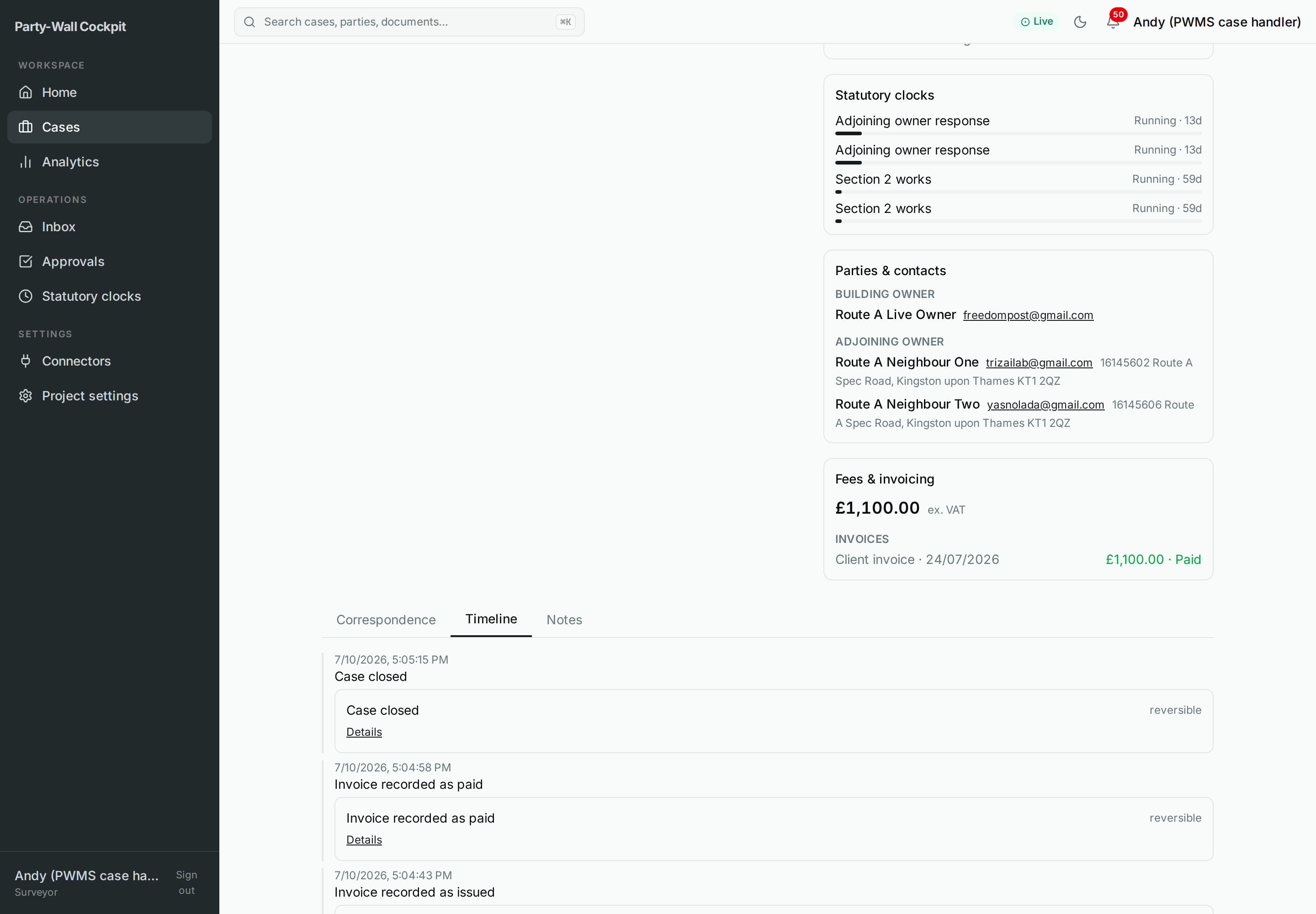 Fees & invoicing: the agreed fee and any invoices, with their status. Recording an invoice here is a record only — it does not raise a real invoice in Xero.
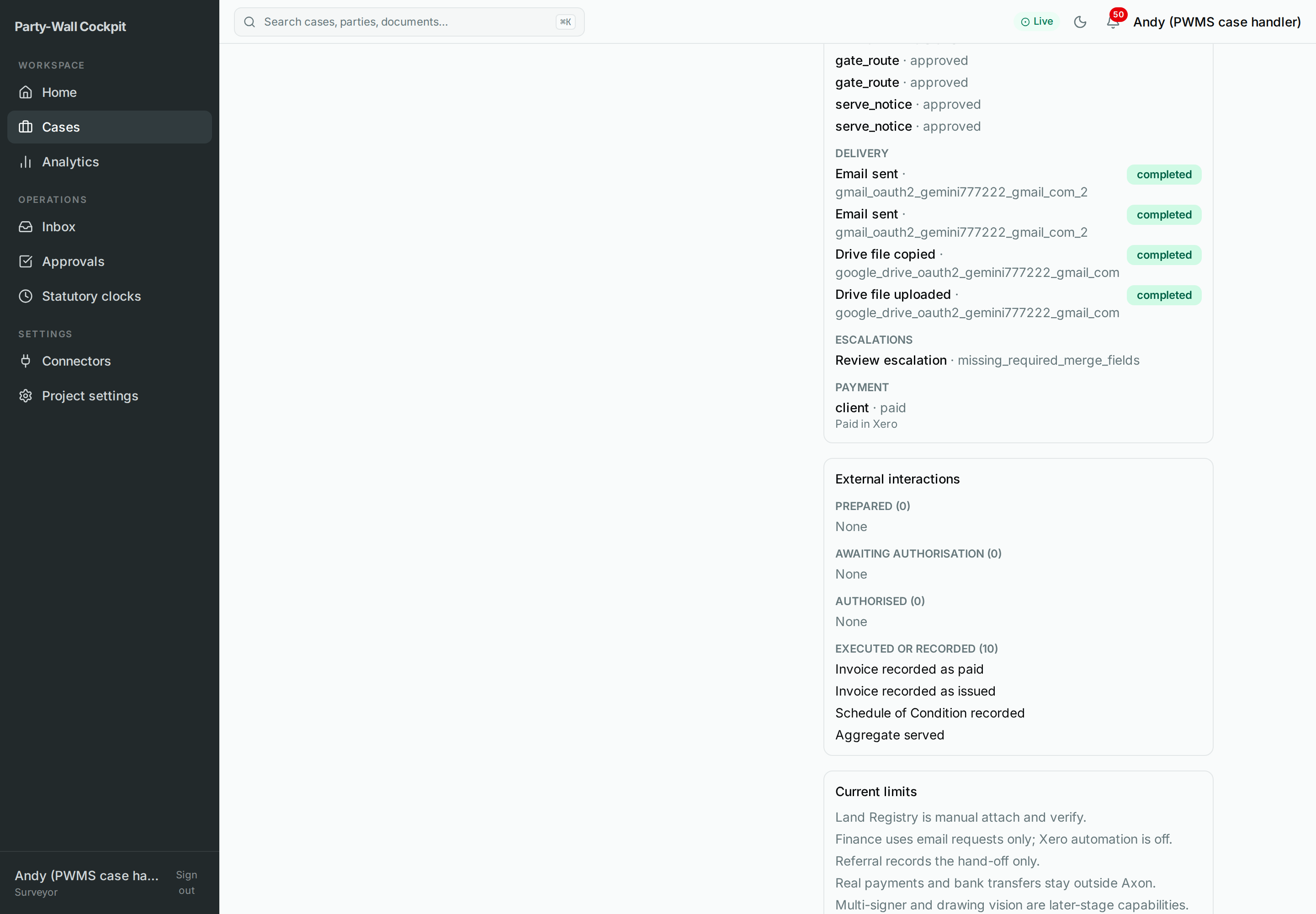 External interactions: the honest state of anything that touches the outside world, from Prepared through to Executed or recorded.
Operator context — what each sub-group tells you¶
The Operator context panel exists so the system can explain itself (Vision invariant 9 — transparency). Two sub-groups you will read most often:
- Escalations. When the system flags something for a human, it names the reason. You may see: Document opened but not signed · Planning objection raised · Adjoining owner's surveyor involved · Defective notice received · WeTransfer link received · Scope change · Missing required merge fields · Bundled works. The suggested next action is either Review escalation or No action.
- Delivery. When a stage workflow has actually done an outside thing, it is logged here with a label and a status: Email sent · Drive file copied · Drive file uploaded · BoldSign signing link created …, each completed (green) or failed (red). A failed delivery is your cue to open Troubleshooting.
4. Mental model — how stage, status, route and clocks fit together¶
Four different things move on this screen, and it helps to keep them separate:
STAGE   (where the whole case is in the process)
Lead → Quote → Case live → Determination → Service → Routing → SoC → Award → Works → Invoice → Closed → Referred
                                              │
                                              └── ROUTE (per adjoining owner, in that AO's side lane)
                                                  A = consent
                                                  B = dissent, one agreed surveyor
                                                  C = dissent, each own surveyor
                                                  D = deemed dissent / appoint on behalf

STATUS  (the lifecycle state of the case as a whole) ── P / L / C / X / H / R  (table below)
CLOCKS  (statutory time-limits that a real service starts) ── AO response, section works, appeal windows …
- Stage is how far along the process the case is — the metro-line.
- Route (A–D) is per adjoining owner — one neighbour can consent (Route A) while another dissents (Route C). Routes live in the AO side lanes on the stage track.
- Status is the lifecycle state of the case as a whole.
- Statutory clocks are the legal deadlines. They start from a real service — either when you approve the serve stage, or the moment you use Record service to log a service that already happened out of band.
Case statuses:
| Value | Label | Meaning |
|---|---|---|
| P | Prospect | An enquiry, not yet a live case |
| L | Live | Active (counts towards active cases) |
| C | Closed | Terminal, closed — cannot be undone from here |
| X | Abandoned | Terminal, abandoned |
| H | On-Hold | Paused |
| R | Referred | Handed off, sits in the Referred register |
SLA badges (derived from the statutory clocks): SLA healthy (green), SLA at risk (amber, ≤7 days), SLA breach (red, expired or overdue). Breach outranks at-risk outranks healthy.
Per-AO side-lane badges: Route {A|B|C|D} (primary), Predicted {route} (muted, the system's guess before it is confirmed), {N} chasers (amber), Not served (while nothing has been served), and an AO state label such as Awaiting service / Served / Awaiting response / Consented / Agreed surveyor appointed / Deemed dissent / SoC visit scheduled / Award served / Complete.
Reversibility labels appear on each timeline entry so you always know how permanent an action was: reversible (neutral), compensable (amber — can be put right, perhaps at a cost), irreversible (red, bold), and reversibility unconfirmed (amber — the fail-safe wording when the system is not certain, treated as if it were irreversible).
5. Flows — how to read the screen and choose an action¶
You do not need to memorise the buttons. Read the screen top-down and the right action becomes obvious:
- Status pill (header). On-Hold, Abandoned, Closed or Referred? The available buttons change with status (see §7). A Live case shows the full set.
- Stage track. Which stage is current? The matching Run stage launcher (Qualify, Set up, Determine notices, …) is your normal way to move forward.
- Requires your approval. If a gate is open, deal with it first — an open gate blocks the stage from progressing.
- Per-AO side lanes. A neighbour has responded, or gone silent? That is where the adjoining-owner actions apply (Record AO response, Appoint on behalf, …).
- Stage checklist. A red "— blocks progression" item tells you exactly what is missing.
For complete worked examples — a consent case, a dissent case, rejecting a lead, handling an escalation — see Scenarios.
6. Options reference¶
This is the heart of the page: every control, grouped exactly as they appear.
Two things are both called "Run stage" — they are different mechanisms.
- The stage-launcher chips (Qualify case, Set up case, Determine notices, …) in the top row of Quick actions are the normal, confirm-gated way to move the case one stage forward. Each runs the matching stage under the system account.
- The "Run stage" button in the header is a separate, general operator-start: it opens the workflow picker (with this case pre-selected) so you can start any promoted, operator-ready workflow. Use the chips for the everyday flow; use the header button only when you deliberately want to pick a specific workflow.
Run-stage launchers¶
Top row. Confirm-gated. The system fills in every input from the case facts plus your firm defaults and runs the stage under the system account. These are the only actions that cause real outside effects, and each pauses at an approval gate before anything irreversible.
| Button | What it does | Confirm-gated? | Destructive? |
|---|---|---|---|
| Qualify case | Checks the enquiry is a genuine, workable party-wall job | ✅ | No |
| Set up case | Creates the case folder, binds the connectors, runs setup | ✅ | No |
| Determine notices | Works out which statutory notices are needed | ✅ | No |
| Serve notices | Prepares the notices and opens the required approval gates. Nothing is sent automatically — you authorise the send at the gate | ✅ | No |
| Start works engine | Begins monitoring the works | ✅ | No |
| Start invoicing engine | Begins invoicing | ✅ | No |
| Re-create case folder | Recovery only: rebuilds the Drive folder if auto-creation failed | ✅ | No |
Serve notices does not serve
Despite the name, Serve notices only prepares the notices and raises the approval gates. Real service happens later, after you authorise it at the gate, inside the stage workflow — and only that starts the statutory clock.
For your technician
The launchers all run pw_cockpit_run_stage with the relevant stage. This command is the single real side-effect surface: it starts the stage workflow (Drive provisioning, notice generation, service + statutory clock via pw_serve_and_track_v1, works, and Xero email-invoice via pw_invoicing_v1) behind approval gates, under the system account, with a fresh idempotency basis (so it is safely retriable). The old pw_cockpit_start_intake is non-functional (it self-rejects in validate) — it was replaced by pw_cockpit_run_stage.
Adjoining-owner actions¶
Visible only when the case has an adjoining owner with an AO group (a real neighbour on file). Each opens a small form.
| Button | What it does | Dialog | Record ≠ serve |
|---|---|---|---|
| Record AO response | Logs a neighbour's response (consent / dissent) and moves that neighbour's route; you pick the AO and enter the text | QuickActionDialog (form) | Records the response only |
| Appoint on behalf | When a neighbour has gone silent (deemed dissent), asks the owner to approve appointing a surveyor on their behalf; you pick the AO and give a reason. Creates an owner-approval — it does not appoint anyone itself | QuickActionDialog (form) | Creates an approval only |
| Confirm re-service | Records the date a notice was re-served and resets that neighbour's statutory clock. The date only — the notice itself must be authorised and served separately | QuickActionDialog (form) | Records a date only |
| Record third surveyor | Records the agreed third surveyor (s.10) and prepares a draft letter. The draft is not sent | QuickActionDialog (form) | Records + prepares a draft, no send |
Milestones (one-click, confirm-gated)¶
| Button | What it does | Confirm-gated? | Destructive? |
|---|---|---|---|
| Record SoC | Marks the Schedule of Condition complete | ✅ | No |
| Record Award | Logs that the Party Wall Award has been made | ✅ | No |
| Mark works done | Marks the works complete | ✅ | No |
| Record payment | Manually marks the client invoice paid (an override — normally this arrives automatically) | ✅ | Yes |
| Close case | Closes the case, terminally | ✅ | Yes |
| Set chaser priority | Raises the chaser priority to elevated | ✅ | No |
Record payment cannot be undone from here
Record payment manually marks the client invoice paid. It is an override for the normal automatic path. It cannot be undone from here — only use it when you have confirmed the money has actually arrived (real bank transfers stay outside the system, see §9).
Close case cannot be undone from here
Close case closes the case terminally. It cannot be undone from here. Any open approval gates on the case are withdrawn as part of closing. Make sure the case is genuinely finished first.
Case lifecycle¶
Buttons whose visibility depends on the case status (see §7 for the full table). Most open a form.
| Button | What it does | Dialog | Visible when |
|---|---|---|---|
| Resume case | Takes the case off hold and restarts progress and chasers | Confirm | Status = On-Hold |
| Mark method statement ready | Marks the method statement ready and unblocks the works | Confirm | A known case version exists |
| Put case on hold | Pauses the case with a reason and a review interval (1–365 days, default 30) | QuickActionDialog (form) | Hidden when On-Hold / Closed / Abandoned / Referred |
| Abandon case | Terminally abandons the case; you give a reason code and text. Shown as a red danger chip | QuickActionDialog (form) | Hidden when Closed / Abandoned / Referred |
| Refer enquiry | Takes the enquiry out of the party-wall process to a specialist. Records the referral only | QuickActionDialog (form) | Hidden when Closed / Abandoned / On-Hold / Referred |
| Record invoice | Records a client invoice you have issued (entity, bill-to, fee ex-VAT) | QuickActionDialog (form) | Always (with write access) |
| Record external authority | Records an acceptance of appointment that happened out-of-band, and activates the mandate. Nothing is sent | QuickActionDialog (form) | Always (with write access) |
| Record signing authority | Records that one owner may sign on behalf of the others. Record only | QuickActionDialog (form) | Always (with write access) |
| Capture decision | Records a surveyor's decision, any correction to the system's suggestion, and the reasoning (for the audit trail) | QuickActionDialog (form) | Always (with write access) |
| Request withdrawal | Requests approval to send a draft withdrawal of served notices. Creates a gate — it does not send | QuickActionDialog (form) | Status = Abandoned |
Abandon case cannot be undone from here
Abandon case terminally abandons the case. It cannot be undone from here. If you only need a pause, use Put case on hold instead — that is reversible with Resume case.
Everyday operational actions¶
Day-to-day record-keeping. Each opens a form. Note the button colours: primary (blue) and danger (red) buttons still only record — the colour is emphasis, not a promise to send.
| Button | What it does | Style | Record ≠ serve |
|---|---|---|---|
| Record drawing analysis | Records your reading of the drawings (pre-filled from the system's suggestion). Visible only when a drawing analysis exists | normal | Records only |
| Record service | Records a service that already happened out of band (method + date) and starts that neighbour's statutory clock immediately from the date you enter — no approval gate | normal | Does not send; but starts the statutory clock straight away |
| Log call/note | Records a call or note (inbound / outbound) | normal | Records only; does not send |
| Upload document | Attaches a Drive file as a source or draft | normal | Attaches only |
| Email party | Records an outbound message to a party | primary (blue) | Recorded, NOT sent — there is no delivery worker; nothing goes out automatically |
| Schedule SoC visit | Records a proposed date for the Schedule-of-Condition visit | normal | Records a proposed date; the calendar is not booked |
| Escalate | Raises an escalation (reason / severity / evidence) for a human to review. Starts nothing autonomous | danger (red) | Records a flag only |
| Assess change | Records an assessment of how a change affects the Award (no action / addendum / refer) | normal | Records only |
| Refer to specialist | Records a referral message to a specialist | primary (blue) | Recorded, not sent |
Record service is mislabelled — there is no gate
The Record service confirmation dialog is mislabelled: its button reads "Request approval" and its text mentions an approval gate before clocks start. Ignore that wording — there is no gate. The statutory clock starts the moment you save, counting from the served date you enter, so enter the correct served date.
Email party and Refer to specialist do not send
Both look like "send" buttons, and both are the prominent blue primary buttons — but both only record an outbound message. There is no delivery worker wired to them, so nothing is sent and nothing is queued for delivery. If a real email must go out, it goes out through a served stage workflow behind an approval gate, or you send it yourself from your own mail client.
Approval-gate controls (GateCard)¶
These appear in the "Requires your approval (N)" section, and only when there are open gates. Each open gate is a card; the controls on it depend on the gate's state.
| Button | What it does | Visible when |
|---|---|---|
| Approve | Authorises the action behind the gate | Gate is pending |
| Reject | Reveals a reason field (required) → then Confirm reject | Gate is pending |
| Confirm reject | Finalises the rejection with the reason | After Reject; disabled until a reason is typed |
| Reclassify | Challenges the classification of an AO response (consent ↔ dissent) → then Confirm reclassify | On an AO route-confirmation gate |
| Confirm reclassify | Finalises the reclassification | After Reclassify; disabled until a reason is typed |
| Request more context | Asks a clarifying question → then Send question | Gate is pending |
| Send question | Sends the question | Disabled until text is typed |
| Edit before approve | Edits the fields on the gate → then Apply edit | Gate is pending; when the gate has no editable fields it shows "No editable fields for this gate" |
| Apply edit | Submits the edited fields | Disabled unless something changed |
| Provide context | Supplies the requested context → then Submit context | Gate is awaiting context |
| Submit context | Sends the context | Disabled until text is typed |
An irreversible gate is drawn on a red card. If it carries an anticipated cost, it says "Anticipated cost £X — authorise to incur charge" — approving it will spend money. Read those before you click.
'Approve all (N)' — do not use it when any gate shows a cost
On the Approvals page (/approvals, not on this case screen) an "Approve all (N)" button appears only when a case section holds a group of two or more pending gates of the same side-effect (reversibility) class — it bulk-approves every such group in that case in one click (N is the total across them), including any irreversible or chargeable gates in it. If any gate in the group shows an anticipated cost or an irreversible badge, do not use bulk approve: check and approve those gates one at a time. The Approvals page is documented in Sections.
Automation panel controls¶
In the right rail, one set per live workflow. The badge tells you the state; the controls appear when a workflow has failed.
| Button | What it does | Visible when |
|---|---|---|
| Pause | Pauses the workflow | Running (not failed / paused) |
| Retry | Restarts a failed workflow | Failed |
| Investigate | Scrolls to the escalations section (read-only) | Failed |
| Skip | Cancels the failed workflow — the same effect as Continue manually; it does not resume or advance past the failed step. You then drive the case by hand | Failed |
| Continue manually | Cancels the automation so you do the step by hand | Failed |
 Automation panel: live workflows with their state badges. Retry / Investigate / Skip / Continue manually appear when a workflow has failed.
Fresh approval after a retry
The panel warns: "Fresh approval is required before money or statutory side effects repeat." If you Retry or Skip a workflow that had already reached a money or statutory step, the system asks for approval again before repeating it — it will not silently re-charge or re-serve.
Document links¶
In the Documents section, per document.
| Button | What it does | Visible when |
|---|---|---|
| Open document | Opens the Drive file in a new tab | The document has a Drive file |
| Download document | Downloads the Drive file | The document has a Drive file |
Dialogs on the case screen¶
Three dialog types back the buttons above:
| Dialog | Purpose | Buttons |
|---|---|---|
| ConfirmActionDialog | The generic "are you sure?" gate for one-click actions. No fields — the title is the action label, the message is the consequence | Decline / Accept (Accept is red for destructive actions; disabled while a command is in flight) |
| QuickActionDialog | The generic form for actions that need input. Fields (text / textarea / date / select / radio) are validated before you can submit | Cancel / Submit (the submit label is the action's own, or "Confirm"; disabled until valid). An amber disclosure line explains any caveat |
| StartWorkflowDialog | The workflow picker opened by the header "Run stage" button (with this case pre-selected). Pick a promoted workflow, fill its fields, review the bindings | Cancel / Start (→ "Starting…") / Done |
Three other dialogs — Reject lead, Set qualification outcome, and the New-case wizard — do not live on the case screen. They belong to the leads / cases-list surface (
/cases,/cases/new) and are documented in Sections and Scenarios.
Notifications (error toasts only)¶
The Cockpit only pops a toast when something fails — success is shown inline, never as a toast. So a toast always means "read me". Full remedies are in Troubleshooting; the messages:
| Toast | It means |
|---|---|
| Session expired — Please sign in again. | Your session ended — sign in again |
| Not permitted — … | You do not have permission for that action |
| Item changed — …refresh and try again. | Someone changed the case since you loaded it — refresh |
| Conflict — … | A conflicting state — refresh and retry |
| Could not save — … | Some details were invalid |
| Action failed — … | The action failed for another reason |
7. Lifecycle — which button appears at which status¶
The Quick actions bar changes with the case status. The status-conditional rules:
| Button | Appears when |
|---|---|
| Resume case | Only when On-Hold |
| Request withdrawal | Only when Abandoned |
| Put case on hold | Hidden when On-Hold / Closed / Abandoned / Referred |
| Abandon case | Hidden when Closed / Abandoned / Referred |
| Refer enquiry | Hidden when Closed / Abandoned / On-Hold / Referred |
| Adjoining-owner actions + Record AO response | Only when the case has an adjoining owner with an AO group |
| Record drawing analysis | Only when a drawing analysis exists |
| Mark method statement ready | Only when a known case version exists |
| The whole Quick actions bar | Only with write access; each chip greys out while a command is in flight |
So a Closed or Referred case shows almost no lifecycle buttons — that is expected, it is terminal. An On-Hold case shows Resume case and hides Put case on hold and Refer enquiry; Abandon case is still available.
8. Troubleshooting¶
Two case-screen-specific things worth knowing before you reach for Troubleshooting:
- A button is greyed out. Either a command is still being processed (wait a moment) or you are in read-only mode (look for the banner). It is not a bug.
- The case is not moving but nothing has failed. Check, in order: Operator context › Workflows & waits (a workflow may be waiting), the Requires your approval section (an open gate blocks the stage), the Statutory clocks (a legal deadline may simply be running — that is normal), and the Stage checklist (a red "— blocks progression" item). Only call a technician if none of those four explains the pause.
Everything else — the full toast and error list, connector re-authorisation, and when and how to call a technician — is in Troubleshooting.
9. Limits and invariants¶
Current limits (shown verbatim in the right-rail panel — honest disclosure of what the system does not do yet):
- Land Registry is manual attach and verify.
- Finance uses email requests only; Xero automation is off.
- Referral records the hand-off only.
- Real payments and bank transfers stay outside Axon.
- Multi-signer and drawing vision are later-stage capabilities.
Reversibility labels on timeline entries tell you how permanent each past action was: reversible (neutral), compensable (amber — can be put right, perhaps at a cost), irreversible (red, bold), reversibility unconfirmed (amber — the fail-safe wording, treated as irreversible until confirmed).
Record ≠ serve — the invariant behind the whole screen. Every record action on this page saves a fact, a draft, or an intention and does nothing irreversible to the outside world by itself. Real service, e-signing, invoicing and statutory clocks happen only inside the stage workflows started by the Run stage launchers, and only after you authorise them at an approval gate. The one deliberate exception is Record service — used to log a service that already took place outside Axon — which starts that neighbour's statutory clock immediately when you save it (no gate), so enter the correct served date. This is a designed safety property, not a temporary gap — it is why you can click freely on this screen and never accidentally serve a neighbour or charge a client.
For your technician
Every pw_cockpit_* record facade is a sync_apply with side_effect_class='internal'; it performs no irreversible external act synchronously. _IRREVERSIBLE_ACTIONS = frozenset() (empty). Reversibility is classified in core/api/queries/pwms_labels.py::action_reversibility, not in execution_paths.py (which maps command → ExecutionPath + RBAC Permission + internal-only gating). The one real side-effect surface is pw_cockpit_run_stage. Handlers: core/api/commands/handlers/pwms_cockpit.py. See the backend mapping below.
For your technician
Backend mapping of the buttons on this screen (command → what it records):
New case wizard → pw_cockpit_create_lead (draft case, status P). Run stage → pw_cockpit_run_stage (the only side-effect surface; pw_serve_and_track_v1, pw_invoicing_v1). Reject lead → pw_cockpit_reject_lead (decline letter as an outbox event, provider_send=False). Refer/Close/Abandon/Hold → pw_cockpit_refer/close/abandon/hold_case. Resume → pw_cockpit_resume_case. Request withdrawal → pw_cockpit_request_withdrawal (send-intent row; no PW outbound worker, so no synchronous send). Log call/note → pw_cockpit_log_communication. Attach document → pw_cockpit_attach_document (source/draft only). Email party / Refer to specialist → pw_cockpit_request_outbound (outbound_request; does not send or schedule delivery). Schedule SoC visit → pw_cockpit_schedule_soc_visit (no calendar booking). Raise escalation → pw_cockpit_raise_escalation. Set chaser priority → pw_cockpit_set_chaser_priority. Capture decision → pw_cockpit_capture_surveyor_decision. Record SoC/Award/works done → pw_cockpit_record_soc/record_award/mark_works_done. Record service → pw_cockpit_record_service (non-email method needs evidence_document_id). Confirm re-service → pw_cockpit_confirm_reserve. Assess change / Record drawing analysis → pw_cockpit_assess_change / record_drawing_analysis. Record invoice → pw_cockpit_record_invoice_issued (Xero payload is metadata only; does not call Xero). Record payment → pw_cockpit_record_invoice_paid (manual override; no money movement). Record external/signing authority → pw_cockpit_record_external_authority / record_signing_authority. Record third surveyor → pw_cockpit_record_third_surveyor.
10. Related¶
- Cockpit Overview — the mental model and the app shell.
- Quick Start — one end-to-end case, step by step.
- Scenarios — Routes A–D, rejecting a lead, escalations, on-hold chasers.
- Sections — Home, Cases list, Approvals, Statutory clocks, Connectors, Settings.
- Troubleshooting — toasts, errors, and when to call a technician.
- Cheat Sheet — the one-page printable summary.
- Glossary — party-wall and system terms.