Party-Wall Cockpit — Sections tour
This page walks you around the whole Cockpit: how you sign in, what the screen frame is made of, and what each of the eight sidebar sections is for. Think of it as the map you keep open until the layout is second nature.
1. What the sections are
Once you have signed in, the Cockpit has a fixed frame: a sidebar down the left, a thin top bar across the top, and your working area in the middle. The sidebar groups every section under three headings.
| Group | Sections | What it is for |
|---|---|---|
| WORKSPACE | Home, Cases, Analytics | Your daily starting points — where cases live and how the firm is doing. |
| OPERATIONS | Inbox, Approvals, Statutory clocks | The things that need a decision or that are counting down. |
| SETTINGS | Connectors, Project settings | How the Cockpit connects to Google, Xero and BoldSign, and the firm's defaults. |
At the very bottom of the sidebar is your user chip: your name (the account's display name), your role shown as Surveyor underneath it, and a Sign out link.
One quick word on roles
Your role is Surveyor (Operator) — the sidebar shows your role as Surveyor beneath your name. On the demo account the name above it reads "Administrator"; that is the account's display name, not a role. Andy's account shows Andy's name.
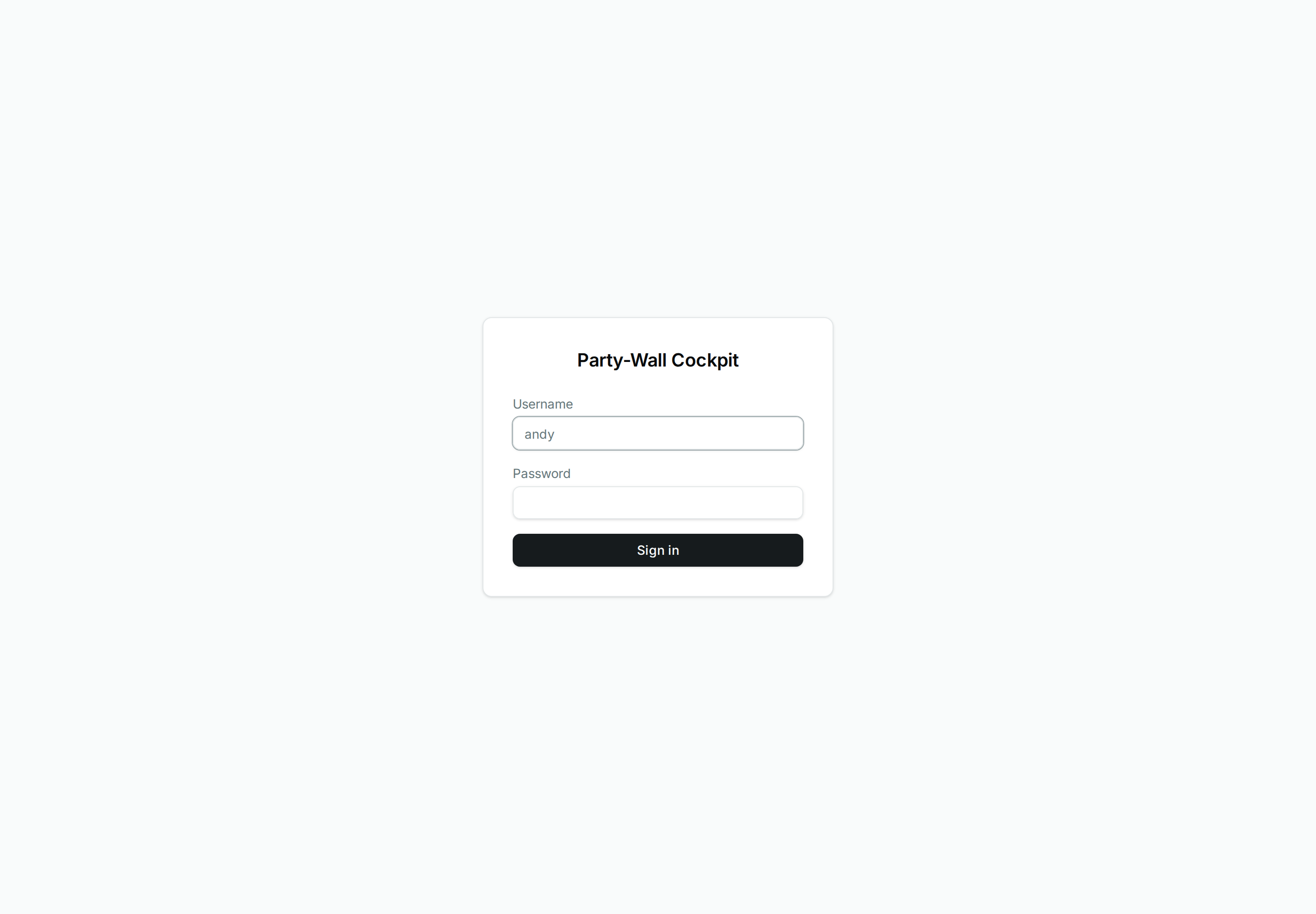 The sign-in card: your username (this field takes the cursor first) and password, then Sign in.
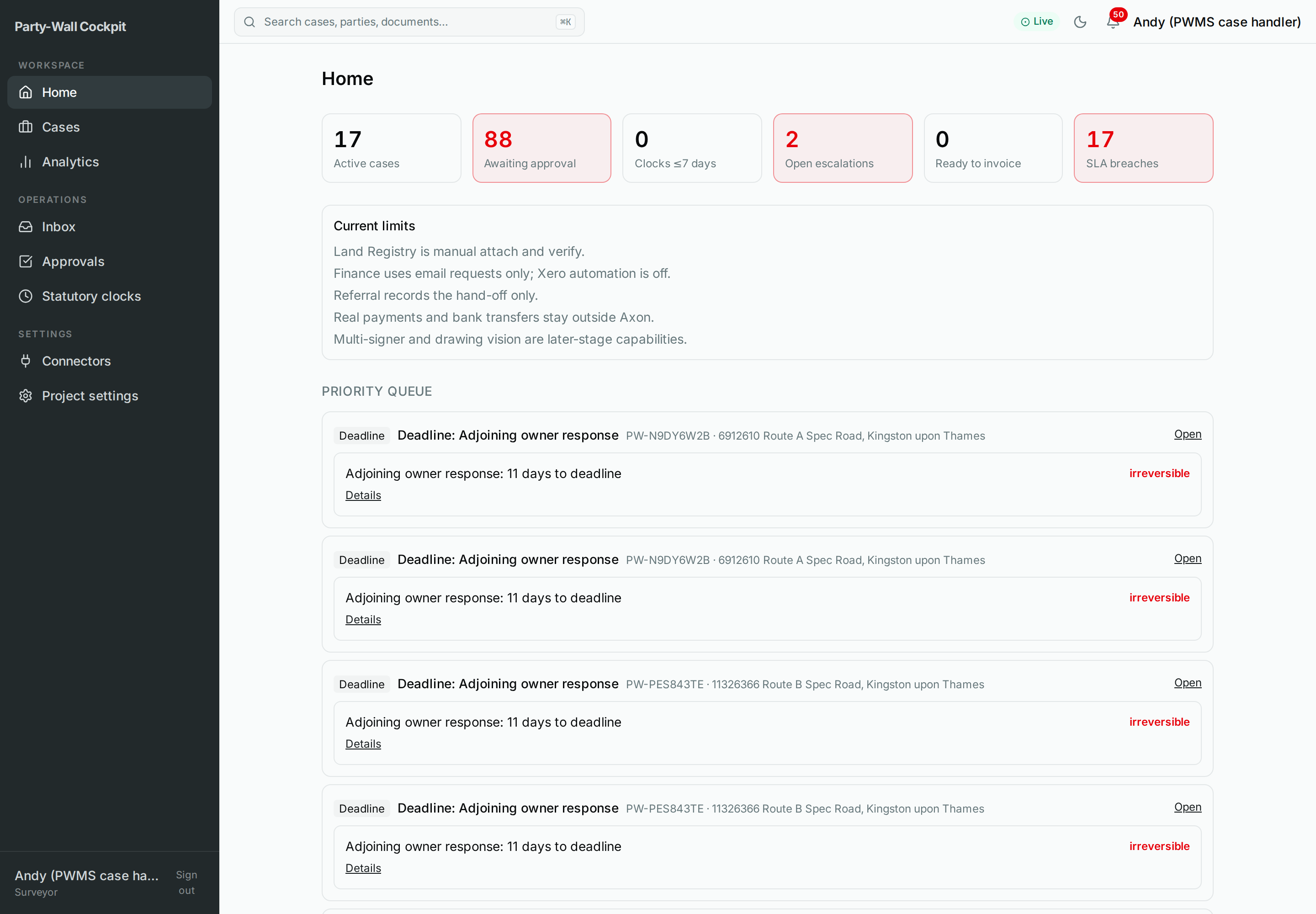 The app frame: sidebar groups on the left (WORKSPACE / OPERATIONS / SETTINGS), the top bar above, your work in the middle.
The top bar carries a search box ("Search cases, parties, documents…"), a green Live pill, a light/dark theme toggle, a notifications bell, and your name.
The search box and Live pill are not what they look like
The search box opens a command palette (also reachable with ⌘K) — it is a shortcut launcher, not a full-text search of your cases. The green Live pill is decorative; it does not mean a case is actively sending anything.
2. Roles and access
Every section is visible to you. What depends on whether write actions are enabled for this Cockpit deployment is one thing on the case screen: the Quick actions bar.
- With write access the case screen shows the Quick actions bar of case controls.
- Without write access that bar simply does not appear. There is no banner and no global "read-only" message, and the buttons on the other pages look exactly the same either way.
If the Quick actions bar is missing from a case screen where this page says it should be, write access is the first thing to check — see Cockpit-Troubleshooting.md.
3. Where it is in Cockpit
One heading per section, in sidebar order.
Home (/)
Your landing page and priority dashboard. It shows stat cards (a quick pulse of the firm), the Current limits panel (an honest list of what the Cockpit does not yet do automatically), and a priority queue of items waiting on you. On a brand-new project with no cases yet, Home offers "Load the guided demo case" so you have something to explore.
Cases list (/cases)
The register of every case. Open a row to jump into that case's screen. The full case screen is documented separately in Cockpit-Cases.md; this section is about the list itself.
Across the top are four register filters:
| Filter | Shows |
|---|---|
| All active | Every case except those in the On-Hold, Abandoned or Referred registers — so Prospect, Live and Closed cases all appear here. |
| On-Hold register | Cases you have parked (status H). |
| Abandoned register | Cases that were dropped (status X). |
| Referred register | Cases handed to a specialist (status R). |
The header also carries three actions:
- Set qualification — record how a lead qualifies (for example a mixed enquiry routed as split-damage). This records the routing only — it does not send anything and does not refer the case on your behalf.
- Reject lead — record a decision to decline an enquiry. This prepares a decline note as a draft and records the decision; nothing is sent automatically. No email leaves the system.
- Start workflow — open the run dialog to start a chosen stage workflow for a case.
To create a case from scratch, use the New case action, which opens the six-step new-case wizard at /cases/new.
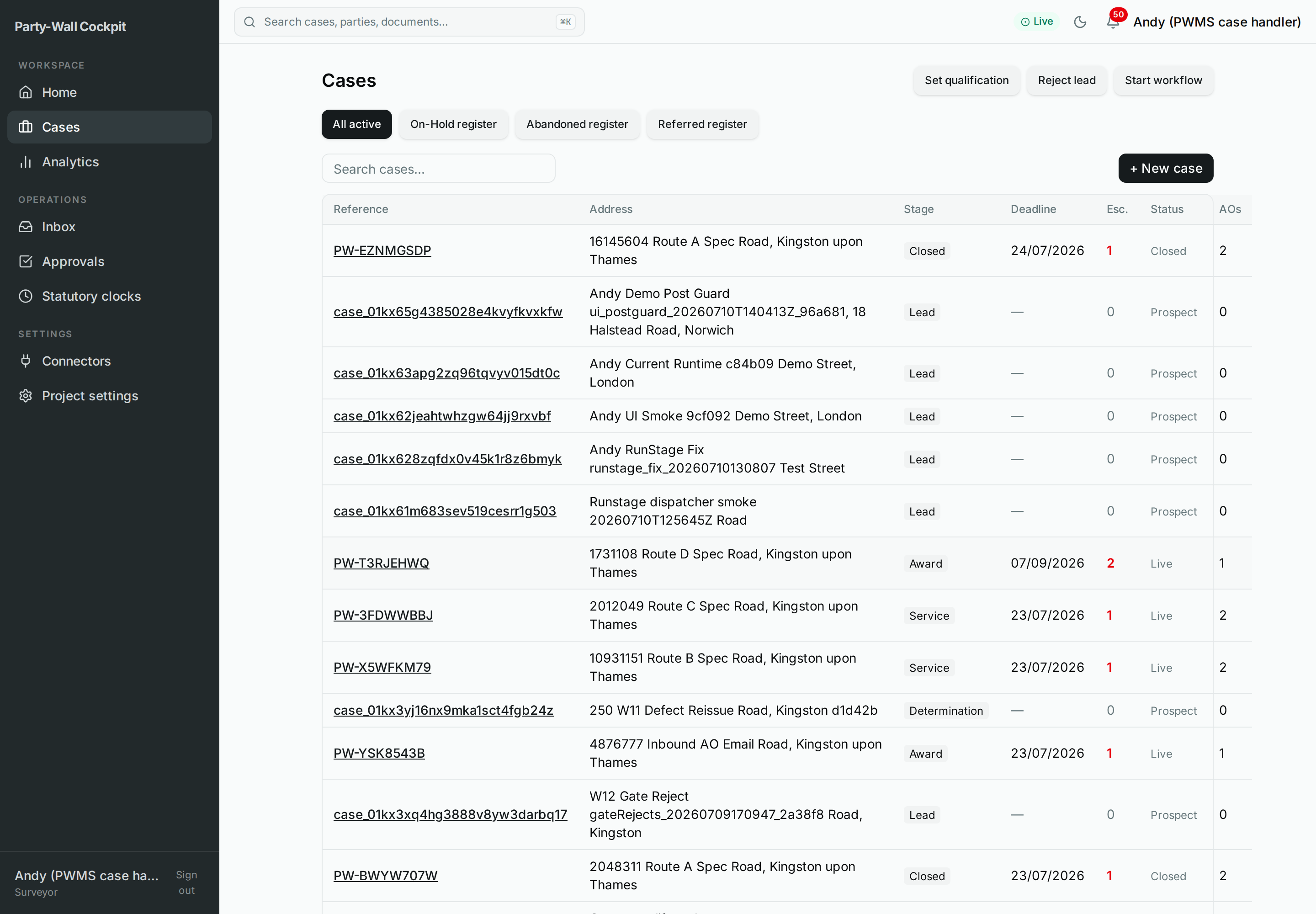 The register: All active / On-Hold register / Abandoned register / Referred register filters across the top, one row per case, header actions on the right.
Analytics (/analytics)
A read-only view of how the firm is doing over roughly the last three months. You will see headline figures (cases closed, cases ready to invoice, the lead-to-signed conversion rate, the fee pipeline), a funnel, average days per stage, and an SLA-breach trend line. A "View cases →" link takes you back to the register. Nothing here changes any case — it is a dashboard, not a control panel.
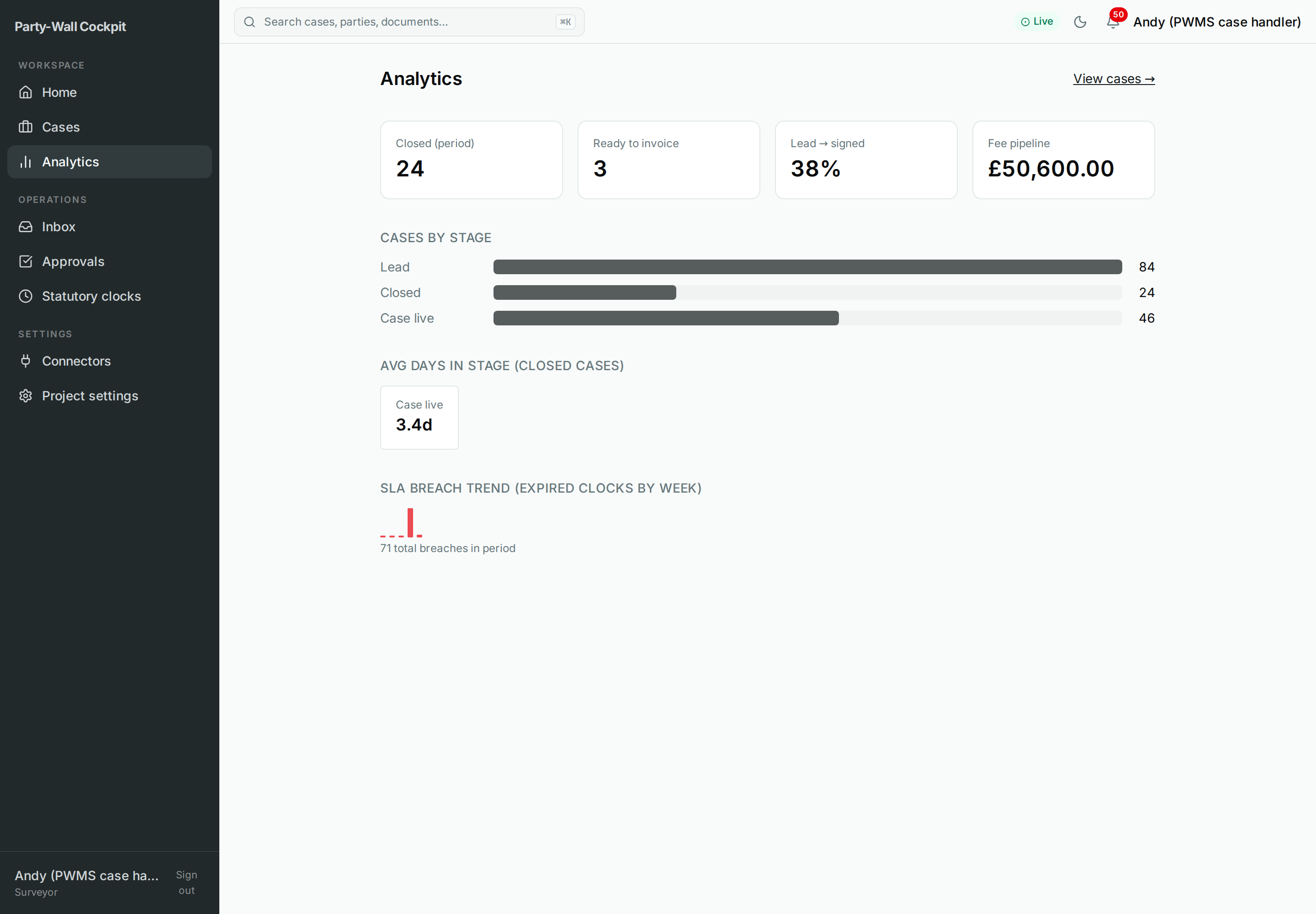 Read-only KPIs, funnel and trend for the last ~3 months. View-only.
Inbox (/inbox)
Unread enquiry emails, brought in for you so you can turn a promising one into a case. Each row has a "Create lead" button that opens the run dialog with that email's details.
Create lead prepares — it does not reply
"Create lead" queues a new lead for you to work; it does not reply to the sender and sends nothing. You still qualify and set the case up yourself.
The Inbox stays empty until Gmail ingestion is switched on for the project. If it is empty and you expected mail, that is usually the reason — the connector or the inbound toggle is off (see Project settings below and Cockpit-Troubleshooting.md).
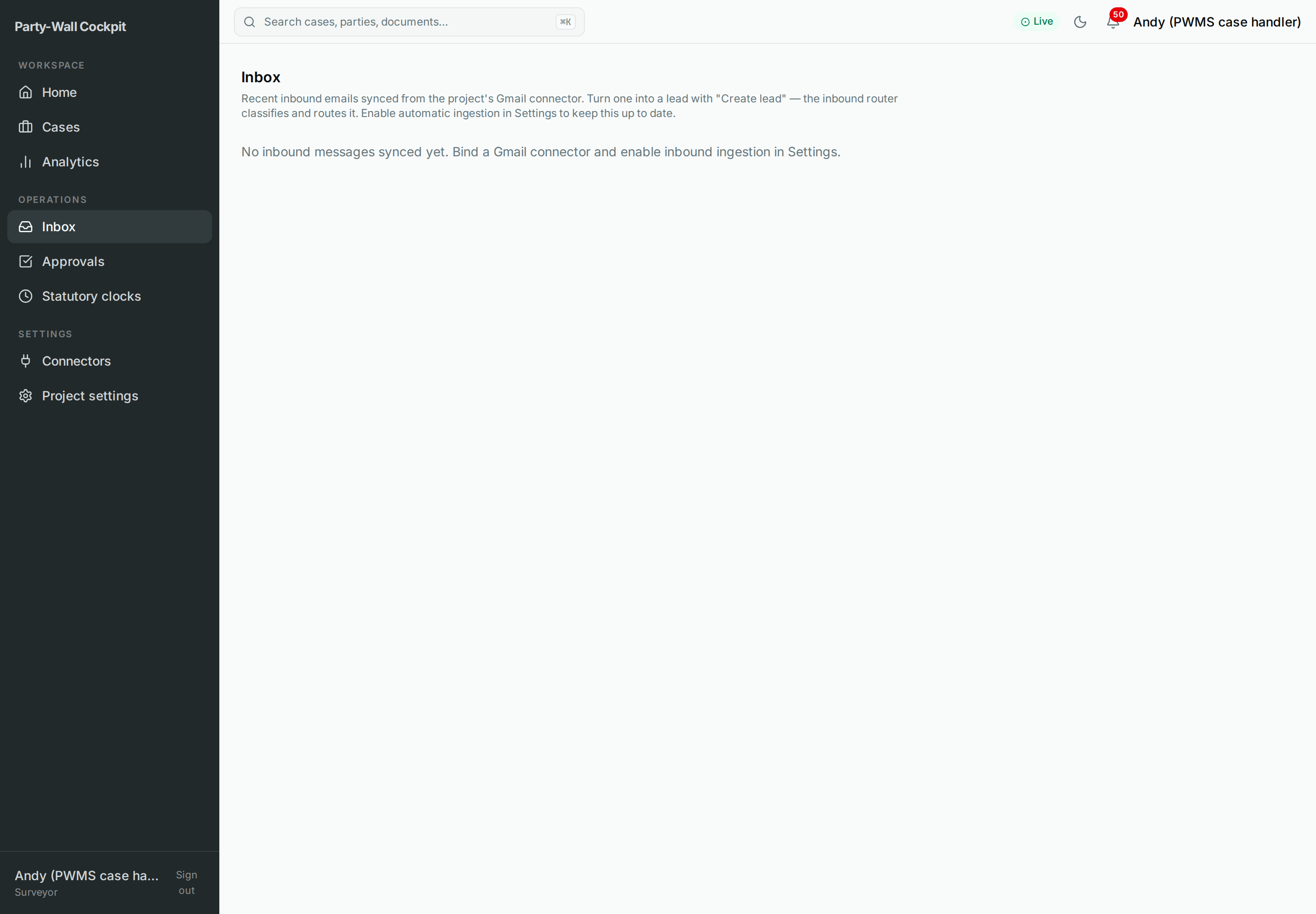 Unread enquiries with a Create lead button on each row. Empty until inbound ingestion is enabled.
Approvals (/approvals)
Your decision queue — the pauses the system holds before anything statutory or financial happens. Approvals are grouped by case. Each item is a gate card with controls:
| Control | What it does |
|---|---|
| Approve | Authorise this step to proceed. |
| Reject | Decline this step. |
| Reclassify | Choose a different response route — this appears only on an adjoining-owner route-confirmation gate, not on every gate. |
| Request more context | Ask for information before deciding. |
| Provide context | Add the information a gate is waiting on. |
| Edit before approve → Apply edit | Adjust the details, then authorise the edited version. |
Approve all (n)
The "Approve all (n)" button appears only when a case has two or more similar pending gates (the same kind of side effect), and it authorises those batched pending gates in one click — which can include gates that cost money or produce irreversible statutory acts (serving notices, sending an invoice). Once approved, those effects proceed and cannot be undone from here. Prefer approving gates one at a time unless you have read every card in the batch.
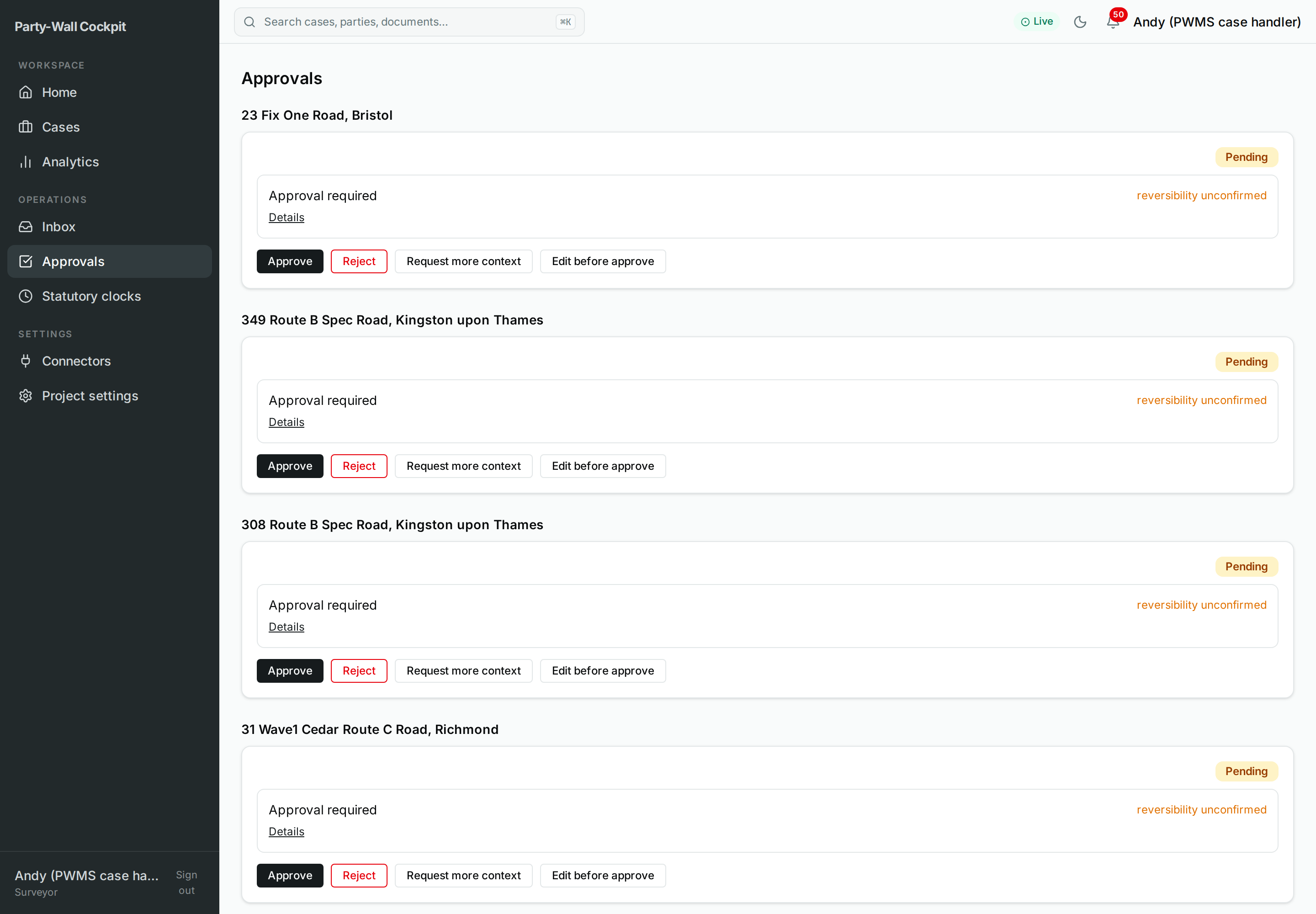 Gate cards grouped by case, with per-gate controls and the Approve all button.
Statutory clocks (/clocks)
A register of every statutory deadline that is currently running, most-urgent first. The table has three columns — Clock, Case and Deadline — with a link back to the case.
Two different 'red' thresholds — both correct
On this page (/clocks) a clock turns red when it has two days or fewer left — that is the near-breach marker for the clocks register. Elsewhere — the SLA badge on a case and the clock panel inside a case — "at risk" uses a seven-day threshold. So a clock can look calm on a case screen and still be flagged here. Both are right; they are simply two different early-warning lines on two different screens.
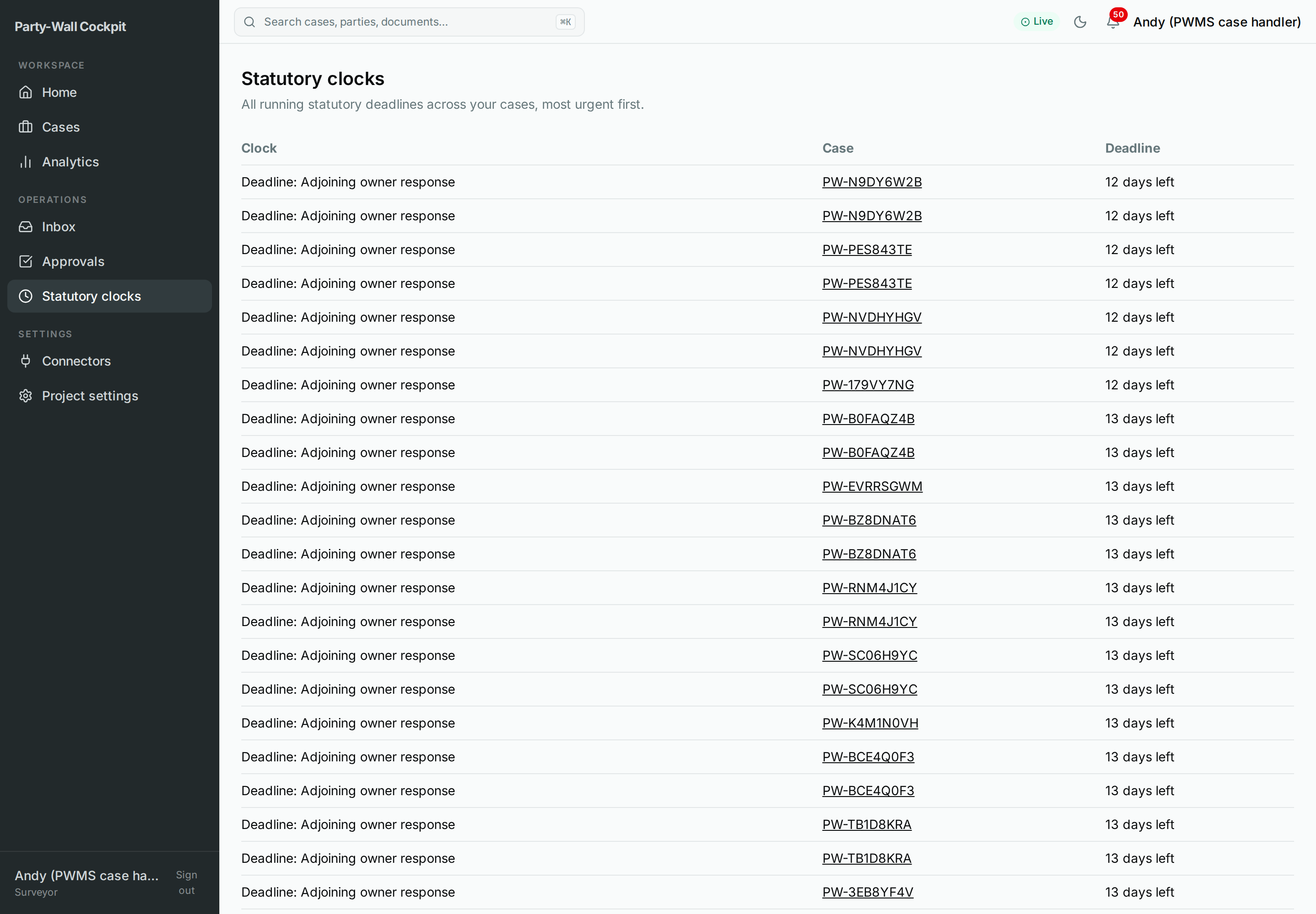 Running deadlines, urgent first; two days or fewer left shows red.
Connectors (/connectors)
The health of the Cockpit's integrations (Google, Xero, BoldSign) and their credentials — without ever showing the secrets themselves. Each connector is a card with a status and, if something went wrong, a "Last error" line telling you what failed.
This section is self-service — you can add and repair connectors yourself:
- Add connector opens a short guided flow. Step one is where you choose which integration (credential type) you are adding. Next you enter a Display name and either sign in through OAuth or paste a secret. A later step lets you pick the adapter and add an optional Config JSON for any extra settings.
- Re-authorise re-runs the sign-in for a connector whose access has expired (it opens the provider's login in a new tab).
- Test connection checks the connector is reachable and its credentials work.
If a Google, Xero or BoldSign step ever reports "expired", this is where you fix it: read the Last error, then Re-authorise or Test connection.
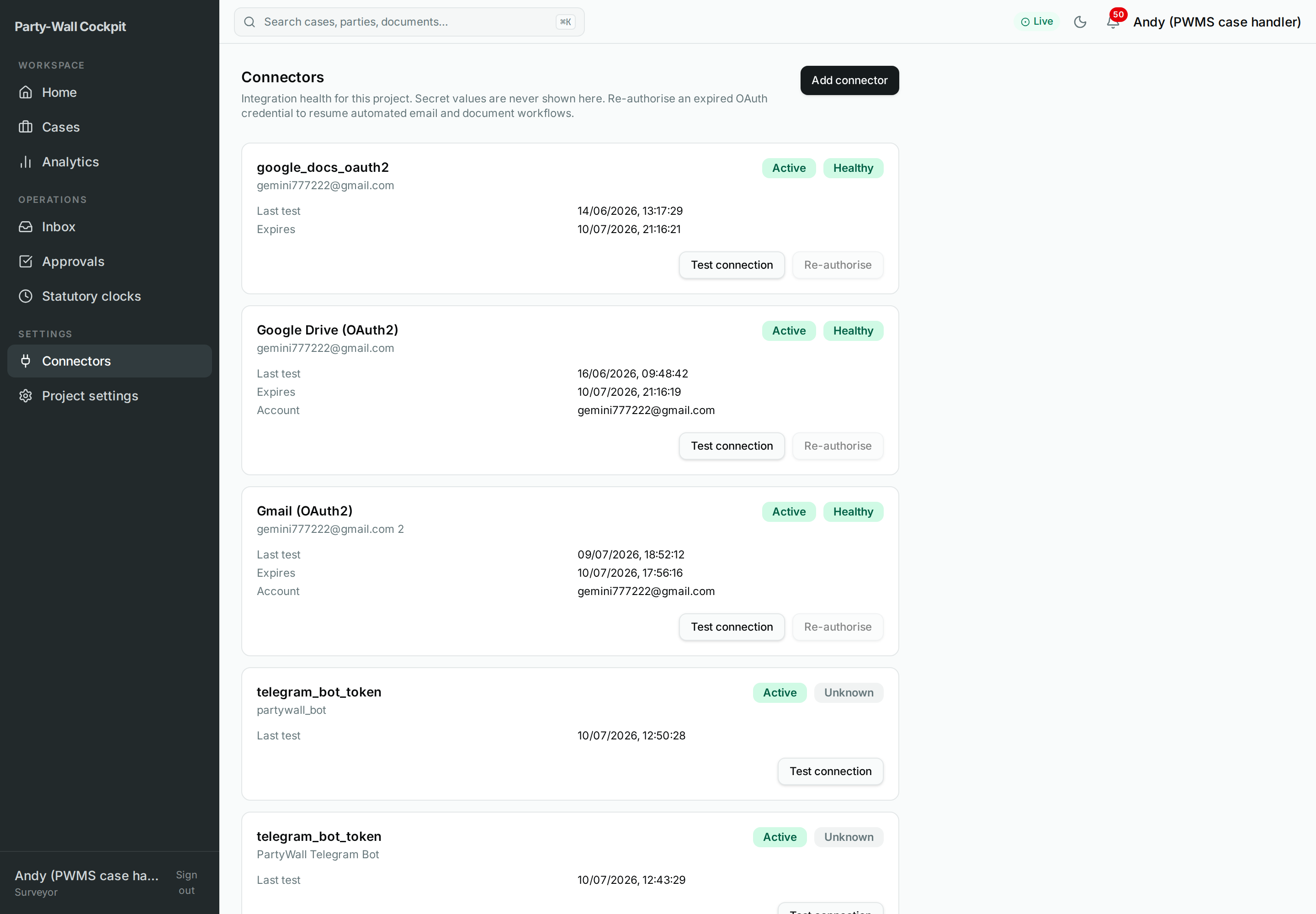 Integration cards with status and Last error, plus Add connector, Re-authorise and Test connection.
Project settings (/settings)
The firm's defaults for this project, split into sections you save one at a time (each section has its own Save):
| Section | What you set |
|---|---|
| SoC / Notices | Defaults for Schedule of Condition and notice handling. |
| Chaser cadence | How often reminders are raised. |
| Addendum assessment | When a change to the works needs an addendum. |
| Firm run defaults | The surveyor name and the document-folder details the system uses when it runs a stage. |
| Rate card | The firm's fees. |
| Inbound ingestion | A single switch that turns the email Inbox feed on or off. |
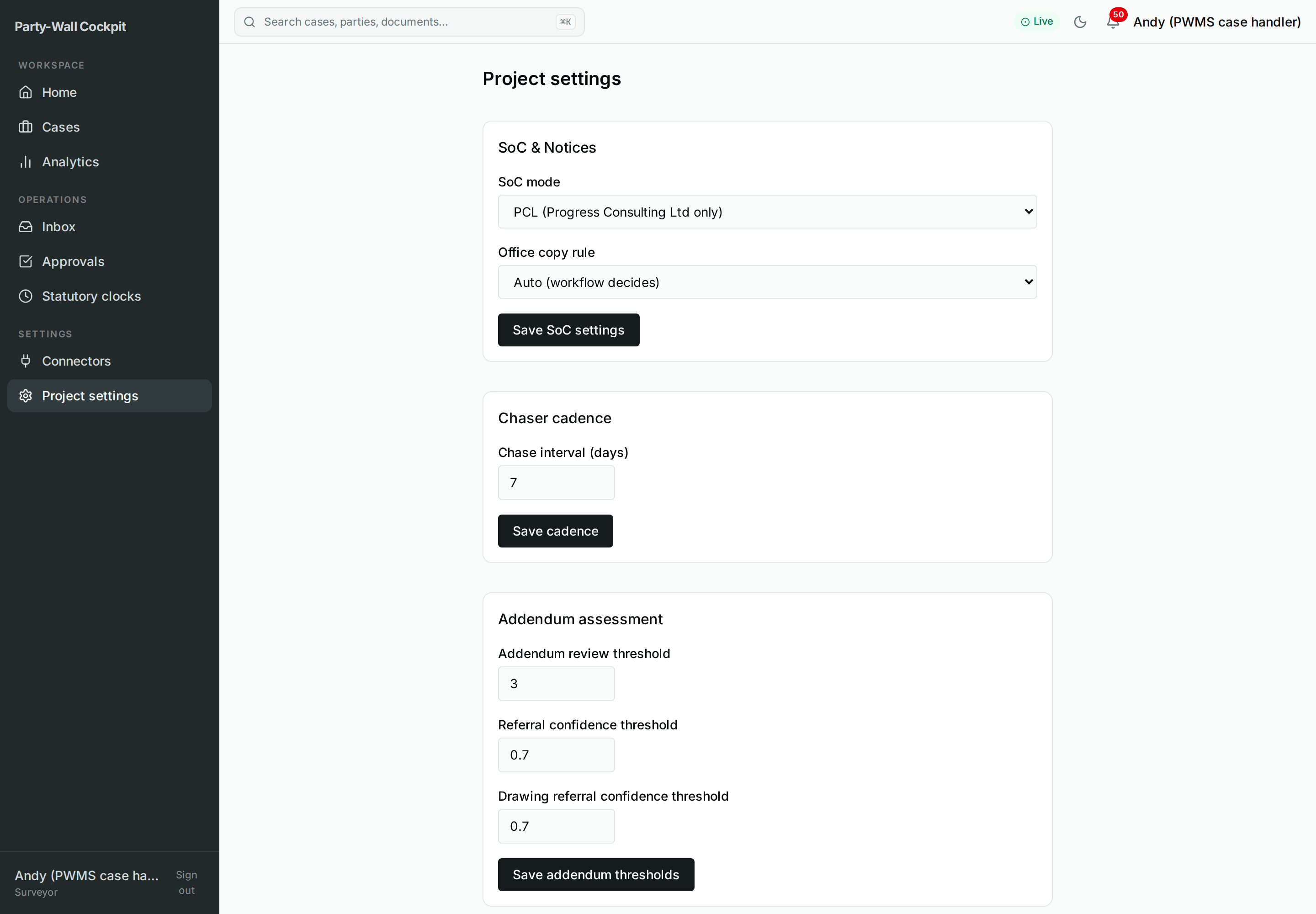 Per-section settings — SoC/Notices, chaser cadence, addendum assessment, firm run defaults, rate card and the inbound ingestion switch — each with its own Save.
4. Mental model — sections along the life of a case
The sections line up roughly with how a case travels from enquiry to closed:
enquiry arrives ──► INBOX ──► create lead ──► CASES (new-case wizard)
                                                   │
                                                   ▼
        run stages, decisions pause at ──► APPROVALS
                                                   │
        statutory deadlines counting down ──► STATUTORY CLOCKS
                                                   │
                                                   ▼
              how the firm is doing ──► ANALYTICS   priority for today ──► HOME

SETTINGS (Connectors, Project settings) sit underneath all of it —
they decide how the system reaches Google / Xero / BoldSign and its defaults.
WORKSPACE is where you see work, OPERATIONS is where you act on work, SETTINGS is the plumbing beneath both.
5. Flows — moving between sections
Two everyday paths tie the sections together.
From an enquiry to a live case:
- Open Inbox.
- On the right enquiry, click Create lead — this queues the lead; nothing is sent.
- You land in the new-case wizard (
/cases/new); complete its six steps. - The case now appears on the Cases list under All active.
From a pending decision back to the case:
- Open Approvals.
- Read the gate card and choose Approve, Reject, Request more context, or Edit before approve → Apply edit.
- Follow the card's case link back into the case to see the effect.
6. Options reference
Every section at a glance.
| Section | URL | Purpose | Main actions |
|---|---|---|---|
| Home | / |
Landing / priority dashboard | Stat cards, Current limits, priority queue, "Load the guided demo case" |
| Cases list | /cases (+ /cases/new, /cases/$id) |
Register of cases + filters | Filters All active / On-Hold register / Abandoned register / Referred register; Set qualification, Reject lead, Start workflow; open a row; New case → wizard |
| Analytics | /analytics |
Read-only KPIs (~3 months) | View figures, funnel, trend; "View cases →" |
| Inbox | /inbox |
Unread enquiry emails → lead | Create lead (per row) |
| Approvals | /approvals |
Decision queue, grouped by case | Approve / Reject / Reclassify / Request more context / Provide context / Edit before approve; Approve all (n) |
| Statutory clocks | /clocks |
Running deadlines, urgent first | Read Clock / Case / Deadline; open case; two days or fewer = red |
| Connectors | /connectors |
Integration health (no secrets) | Add connector, Re-authorise, Test connection |
| Project settings | /settings |
Firm defaults for this project | Per-section Save; inbound ingestion switch |
7. Lifecycle — which cases show where
The Cases list filters map directly onto case status, so the register is also how you find a case by where it is in life:
| Filter | Case status |
|---|---|
| All active | Prospect (P), Live (L) and Closed (C) — every case except those in the On-Hold, Abandoned or Referred registers |
| On-Hold register | H — parked, waiting to resume |
| Abandoned register | X — dropped |
| Referred register | R — handed to a specialist |
Closed cases (C) still appear under All active; you will also see them counted in Analytics.
8. Troubleshooting
Section-level snags — an empty Inbox, a connector marked "expired", missing action buttons, "No access to the Party-Wall project" — are all covered, symptom by symptom, in Cockpit-Troubleshooting.md.
9. Limits and invariants
The Current limits panel on Home states plainly what the Cockpit does not yet do on its own:
- Land Registry is manual attach and verify.
- Finance uses email requests only; Xero automation is off.
- Referral records the hand-off only.
- Real payments and bank transfers stay outside Axon.
- Multi-signer and drawing vision are later-stage capabilities.
And the single idea that runs through every section:
Record ≠ serve
Buttons in these sections record a fact, prepare a draft, or queue an intention. They do not send letters, serve notices, or move money on their own. Anything with a real external effect happens only inside a stage workflow, and only after you clear its approval gate. Nothing is sent automatically.
10. Related
- Cockpit-Overview.md — the big picture and mental model.
- Cockpit-Quick-Start.md — one real case from enquiry to closed.
- Cockpit-Cases.md — the full case screen, button by button.
- Cockpit-Scenarios.md — Routes A–D and the other how-tos.
- Cockpit-Cheat-Sheet.md — one-page printable summary.
- Cockpit-Troubleshooting.md — symptom → cause → fix.
- Glossary.md — party-wall and system terms.
For your technician
Project settings › Firm run defaults write the surveyor name plus the Drive root folder id and plan file id used when a stage workflow runs (pw_cockpit_set_project_settings, patching projects.config / rate_card and budget caps).
Inbound ingestion toggle: app-api does not poll Gmail. Enabling it (pw_cockpit_enable_scheduled_poller) has the worker pick up the setting and register a Temporal schedule that lists unread Gmail; the Inbox is the read-model of that.
Connectors re-authorise / test operate on the stored credentials without exposing them; "Last error" surfaces the last failed call. Add-connector is a 5-step flow: pick the credential type, then provide either an OAuth grant or a secret, then bind an instance where the adapter and an optional Config JSON blob are set.
Every pw_cockpit_* action behind these sections is an internal record facade (side_effect_class='internal', _IRREVERSIBLE_ACTIONS = frozenset()); the only surface that produces real external side effects is pw_cockpit_run_stage, and only behind approval gates.