Party-Wall Cockpit — Scenarios¶
Recipes for the situations you meet most often: the four resolution routes a neighbour can send you down, turning away work that is not for you, raising and clearing an escalation, assessing a change to the works, referring to a specialist, and parking a case that has gone quiet. Each recipe tells you which buttons to press, what the system records, and — every time — what it does not send.
1. What a scenario is and why¶
The Quick Start walks one happy case (a neighbour who consents) from enquiry to closed. Real work is rarely that tidy: neighbours dissent, go silent, or the job turns out not to be a party-wall matter at all. This page is a set of short how-to recipes for those forks.
Two ideas run through every recipe:
- You choose the route by recording what actually happened. The system does not guess the outcome for you; you tell it the neighbour consented, dissented, or stayed silent, and the case moves accordingly.
- Record ≠ serve. Almost everything here records a fact, prepares a draft, or opens a request for approval. Nothing leaves the building automatically. Real outside acts — serving a notice, sending an email, raising an invoice — happen only inside the stage workflows you start with a Run stage button, and only after you approve the gate. See Overview for the full picture.
2. Roles and access¶
You work as Surveyor (Operator). The sidebar shows your role as Surveyor beneath your name (the account name shown above it — e.g. "Andy (PWMS case handler)" or "Administrator" on the demo login — is a display name, not a role).
Every recipe below needs write access. If you are in read-only mode the whole Quick actions bar is hidden and you will see a banner "Read-only mode — write commands are disabled." Ask an administrator to enable write access.
3. Where you run these¶
Most recipes happen on the case screen (/cases/{case}), using the Quick actions bar and the right-hand panels. Two recipes start earlier, on the Cases list (/cases):
- Reject a lead and Qualify a lead / split-damage routing are launched from the header of the Cases list, before a prospect becomes a live case. See Sections tour.
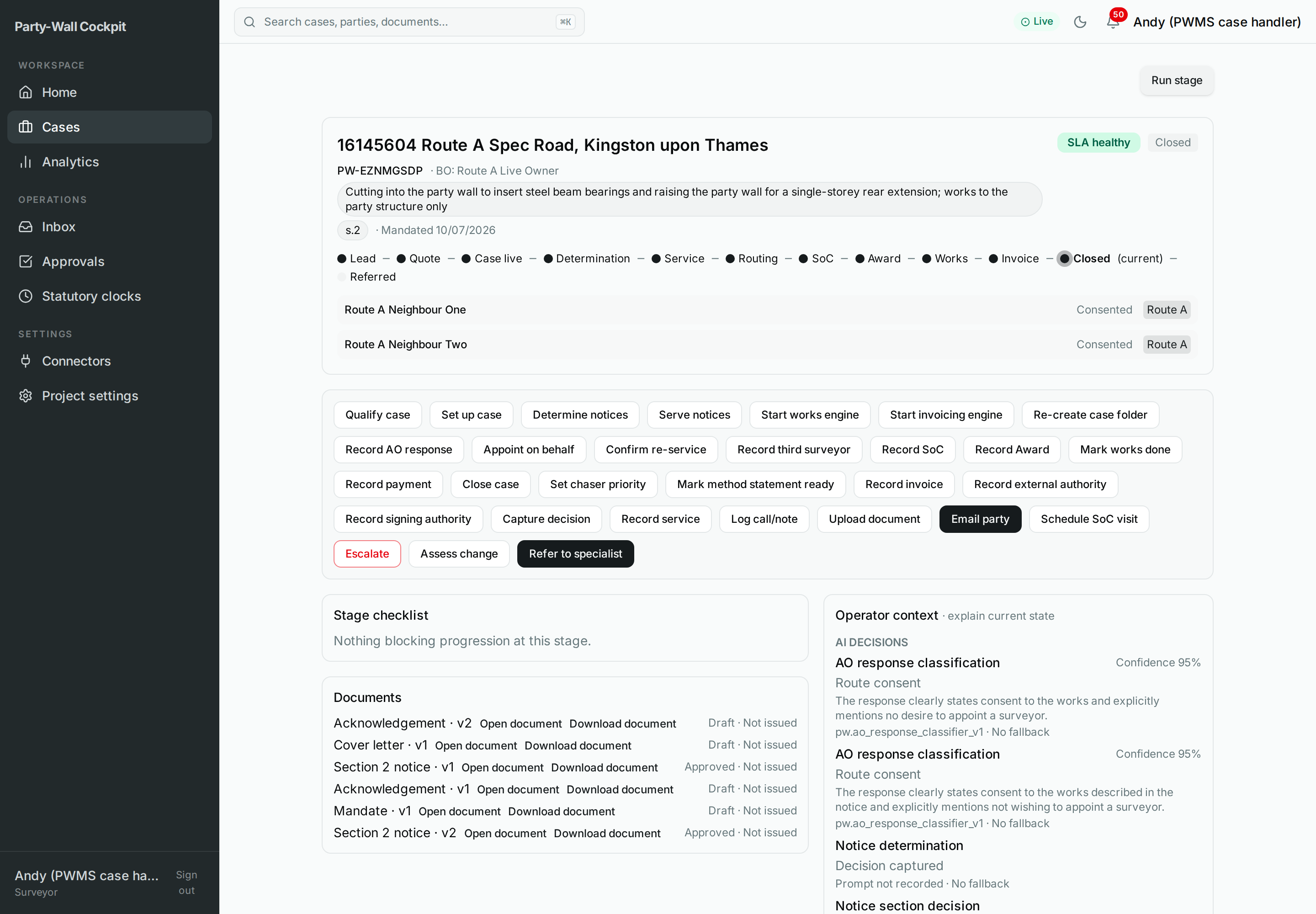 Figure — the full case screen. The per-adjoining-owner side lanes on the stage track (top) tell you which route each neighbour is on; the Quick actions bar drives the recipes below.
4. Mental model — Routes A, B, C, D¶
When a party-wall notice is served, each adjoining owner (AO) can respond in one of a few ways, and each response sends that neighbour down a named route. The route is decided per adjoining owner: on the stage track, every AO has its own side lane with its own route badge, so a single case can have one neighbour on Route A and another on Route D at the same time.
| Route | What the neighbour did | What it means | Where you record it |
|---|---|---|---|
| A | Consents to the works | No dispute; you proceed to Schedule of Condition and the Award | Record AO response → consent |
| B | Dissents, but both sides agree one surveyor | A dispute exists; a single "agreed surveyor" acts for both owners | Record AO response → dissent, then Record external authority for the agreed appointment |
| C | Dissents, and each side appoints its own surveyor | A dispute exists; two surveyors act, and may need a third | Record AO response → dissent (each side's own surveyor) |
| D | Says nothing within the statutory period (deemed dissent) | Silence is treated as a dispute; you may appoint a surveyor on the neighbour's behalf | Appoint on behalf |
Route vs predicted route. Until you record a response, a side lane shows a muted Predicted {route} badge (the system's early guess from the drawings and correspondence). Once you record the neighbour's reply, that guess is replaced by the solid Route A/B/C/D badge (the confirmed route). The two are never shown together: the predicted badge is only an early hint, and the confirmed route is the one that governs the case.
For definitions of AO, deemed dissent, third surveyor and the sections, see the Glossary.
5. Flows¶
Each recipe: what you click → what happens → the route or status you end up with.
5.1 Route A — the neighbour consents¶
The straightforward path, covered end-to-end in the Quick Start. In brief:
- On the case screen, open Record AO response, pick the adjoining owner, and record their reply as consent.
- The neighbour's side lane switches to Route A and shows Consented.
- Carry on with Record SoC, then Record Award, then the works and invoicing milestones.
No dispute machinery is needed. Recording the consent only logs the fact — it sends nothing to the neighbour.
5.2 Route B — dissent with a single agreed surveyor¶
Use this when the neighbour objects but both owners are content for one surveyor to act for both.
- Record AO response → choose the adjoining owner → record dissent. The side lane switches to a dispute state.
- Once the two owners have agreed on the single surveyor out of band (a phone call, an email exchange), open Record external authority to log that the agreed appointment has been accepted. This activates the mandate as evidence — nothing is sent to anyone.
- If one owner is signing on behalf of others, use Record signing authority to record that right. Again, this records only.
- Proceed to Record SoC and Record Award as normal; the Award now reflects the agreed-surveyor arrangement.
The side lane shows Route B with an Agreed surveyor appointed state.
5.3 Route C — dissent, each owner has their own surveyor¶
Use this when the neighbour objects and the two sides appoint separate surveyors.
- Record AO response → the adjoining owner → dissent, indicating each side keeps its own surveyor. The lane moves to Route C.
- Work the two-surveyor process out of band. If the two surveyors cannot agree and a third is needed, use Record third surveyor (below) — but that is only reached when the two cannot settle the Award between them.
- Record SoC and Record Award once the surveyors have settled the Award.
Route C often needs a third surveyor
Two own-surveyor appointments (Route C) is the setting in which a third surveyor (Section 10) may be called. Route B (a single agreed surveyor) does not need one. See Record third surveyor under Route D (§5.4) below — the same button serves both.
5.4 Route D — deemed dissent / appoint on behalf¶
Use this when the statutory period has passed and the neighbour has said nothing. Silence is deemed dissent, and the Act lets you appoint a surveyor on the non-responding owner's behalf.
Appoint on behalf
- Confirm the neighbour's side lane shows Deemed dissent (or that the statutory clock has expired — check the Statutory clocks panel).
- Open Appoint on behalf, pick the adjoining owner, and give the reason.
- This opens a request for the building owner to approve appointing a surveyor for the neighbour. It appoints nobody by itself — it queues an owner approval and records your intent. Nothing is sent.
- Once the owner approves the gate in Requires your approval, the appointment proceeds through the workflow.
Confirm re-service
Sometimes a notice has to be served again (a defect in the first notice, a wrong address). After the notice has actually been re-served out of band:
- Open Confirm re-service and enter the date it was re-served.
- This records the re-service date and resets the neighbour's statutory clock from that date. It records the date only — the notice itself must be authorised and served separately through a serve stage.
Record third surveyor
When two surveyors (Route C, or an on-behalf appointment) cannot agree and select a third surveyor under Section 10:
- Open Record third surveyor, choose the adjoining owner, and enter the agreed third surveyor's details.
- This records the third surveyor and prepares a draft appointment letter. The draft is not sent — you send it separately once you are ready.
The lane moves to Route D with an Appointment on behalf clock, or shows a third-surveyor-agreed state once one is recorded.
For your technician
Confirm re-service and Record third surveyor are the two sync_apply
record facades here: they run pw_cockpit_confirm_reserve and
pw_cockpit_record_third_surveyor, each with side_effect_class='internal'.
Confirm re-service creates/supersedes a pw_statutory_clock row; Record third
surveyor writes a pw_surveyor(role=third) row plus a draft communication that
is not delivered. Neither performs an outside act synchronously.
Appoint on behalf is different: it runs pw_cockpit_run_stage
(stage appoint_on_behalf), launching a gated stage workflow via run_stage.
It is still side_effect_class='internal' — it opens an owner-approval gate and
records intent — and performs no synchronous external act.
5.5 Reject a lead — turn away work that is not for you¶
When an enquiry is not a party-wall job (out of area, a duplicate, spam, or a non-response), decline it from the Cases list header via Reject lead (RejectLeadDialog).
- On
/cases, click Reject lead in the header. - Enter the Lead ID and pick a Rejection reason — Not a Party Wall matter (default), Out of area, No response, Duplicate, Spam, or Other. If you choose Other, a Reason note is required.
- Optionally fill a Decline subject and Decline message for the courtesy reply.
- Click Reject lead.
This records the decline and prepares a non-sending decline draft. Per the dialog's own note — "Recorded only — no provider send" — nothing is emailed to the enquirer. Send the courtesy note yourself if you want it to go out.
5.5a Qualify a lead / split-damage routing¶
When an enquiry mixes a genuine party-wall matter with something else — typically historic damage that predates the works — use Qualification outcome (QualificationOutcomeDialog) from the Cases list, before the qualification gate.
- On
/cases, open Set qualification in the header. - Enter the Lead ID and choose an Outcome: Qualified (default) or the split-damage option, whose full label reads "Qualified - split: Party Wall work proceeds; historic damage tracked separately".
- If you choose the split option, a Split damage reason is required — describe what is party-wall and what is being tracked separately.
- Click Set outcome.
Choosing split damage lets the party-wall matter continue while the historic damage is tracked on its own. Per the dialog's note, this records the routing only — it does not send anything, does not refer the matter, and does not change the qualification status. The qualification gate still decides whether the case is qualified.
5.6 Raise and handle an escalation¶
An escalation flags a problem that needs a human decision — a defective notice, a planning objection, the neighbour's surveyor getting involved, a scope change, an unsigned-but-opened document.
Raise one
- On the case screen, click Escalate (a red danger chip in the Quick actions bar).
- Give the reason, severity, and any evidence.
- This raises the escalation into the triage list. It does not start anything autonomous — it records the flag so a human picks it up.
Handle a failed automation
If a workflow has failed, the Automation panel on the right shows the failed workflow with a Failed badge and up to four controls:
| Control | What it does |
|---|---|
| Retry | Re-runs the failed workflow from where it stopped |
| Investigate | Scrolls to the escalations list (read-only) so you can read what went wrong |
| Skip | Skips the failed step and lets the case move on |
| Continue manually | Turns off the automation for that step so you complete it by hand |
A retry can repeat a real-world effect
The Automation panel warns: "Fresh approval is required before money or statutory side effects repeat." If a retried or skipped step would send money or restart a statutory clock, expect a fresh approval gate to appear — approve it deliberately, not on autopilot.
Capture the decision
When you have made a judgement call — especially where you overrode the system's suggestion — record it with Capture decision: your decision, any correction to the AI's recommendation, and your reasoning. This writes an audit record (and helps the system learn); it takes no outside action.
For your technician
Escalate runs pw_cockpit_raise_escalation (writes pw_escalation.raised into
triage, no synchronous autonomous action). The Automation panel controls act on
the live workflow; "fresh approval required" means the next money/statutory step
re-opens an approval gate before any side effect repeats. Capture decision runs
pw_cockpit_capture_surveyor_decision (decision + rule-candidate for later
review).
5.7 Assess a change to the works¶
When the building owner changes the scope after the Award, decide whether the change needs anything.
- On the case screen, open Assess change.
- Record your assessment and choose the outcome: no action, addendum (the Award needs an addendum), or refer (a specialist is needed).
- Click to submit.
This records the assessment only. It does not raise an addendum, refer the matter, or notify anyone — it captures your judgement so the next step (drafting an addendum, or a referral) is a deliberate, separate action. The result appears in the change-assessments group of the Operator context panel (see The Case Screen).
5.8 Refer to a specialist¶
There are two different "refer" actions — they do different things:
| Action | Where | What it does |
|---|---|---|
| Refer to specialist (chip) | Quick actions, on the case | Records a referral message to a specialist for this case. It is a blue PRIMARY chip, but it does not send — there is no delivery for it. |
| Refer enquiry (lifecycle) | Quick actions, on the case (hidden once Closed / Abandoned / On-Hold / Referred) | Takes the whole enquiry out of the party-wall process and moves the case to Referred (R). It records the referral only — no email goes out. |
Use Refer to specialist when you want a specialist's input but the party-wall case continues. Use Refer enquiry when the matter is not yours to run at all and the case should leave your register. Both record only; if you want the specialist to actually receive something, send it yourself.
5.9 On-hold and chasers¶
When a case goes quiet — waiting on the client, a long gap — park it rather than let it look stalled.
Put a case on hold
- On the case screen, open Put case on hold (hidden if the case is already On-Hold, Closed, Abandoned, or Referred).
- Give a reason and a review interval — a number of days from 1 to 365 (default 30) after which you want to look at it again.
- Submit. The case status becomes On-Hold (H) and progress pauses.
Raise the chaser priority
If a case is not on hold but the neighbour or client is slow to respond, use Set chaser priority to lift the reminders to elevated. This changes the reminder cadence only — it sends nothing itself.
Resume a case
- When you are ready to pick a held case back up, open Resume case (shown only when the status is On-Hold).
- This lifts the hold, returns the case to its previous status, and restarts progress and chasers.
6. Options reference (scenario actions)¶
The buttons used above, grouped. Full detail for every Quick action is in The Case Screen.
Adjoining-owner actions (shown only when the case has an AO)
| Button | Records / does | Sends? |
|---|---|---|
| Record AO response | Logs consent/dissent, moves that neighbour's route | No |
| Appoint on behalf | Opens an owner approval to appoint on the neighbour's behalf | No — queues a gate |
| Confirm re-service | Records the re-service date, resets that neighbour's clock | No — date only |
| Record third surveyor | Records the s.10 third surveyor, prepares a draft letter | No — draft not sent |
Case lifecycle & operational
| Button | Records / does | Sends? |
|---|---|---|
| Refer to specialist | Records a referral message for this case | No |
| Refer enquiry | Moves the case to Referred (R) | No |
| Put case on hold | Pauses the case (reason + review interval) → On-Hold (H) | No |
| Set chaser priority | Raises reminders to elevated | No |
| Resume case | Lifts the hold, restarts progress | No |
| Escalate | Raises an escalation for triage | No |
| Assess change | Records an impact assessment (no action / addendum / refer) | No |
| Capture decision | Records a surveyor decision for audit | No |
| Record external authority | Records an out-of-band appointment, activates the mandate | No |
| Record signing authority | Records one owner's right to sign for others | No |
| Request withdrawal | Opens an approval to send a withdrawal of served notices | No — creates a gate |
7. Lifecycle — where the scenarios take a case¶
| From | Action | To |
|---|---|---|
| Live (L) | Put case on hold | On-Hold (H) |
| On-Hold (H) | Resume case | back to previous status |
| Live (L) | Refer enquiry | Referred (R) |
| Live (L) | Abandon case | Abandoned (X) |
| Abandoned (X) | Request withdrawal | opens an approval to withdraw served notices |
Reclassifying a recorded response. If you recorded the wrong response, you do not re-run the recipe — an AO route-confirmation gate in Requires your approval offers Reclassify (consent ↔ dissent) with a required reason, then Confirm reclassify. See The Case Screen.
Abandon case cannot be undone from here
Abandon case terminally abandons the case (status → Abandoned (X)) with a reason code. Like Close case and Record payment, it cannot be undone from the cockpit. Use Put case on hold if you only need to pause. Request withdrawal (available only when a case is Abandoned) does not undo the abandonment — it opens an approval to send a draft withdrawal of notices already served; it sends nothing until you approve the gate.
8. Troubleshooting¶
- A route badge did not change after you recorded a response → the response may still be awaiting a route-confirmation gate in Requires your approval.
- A stage is not moving but nothing has failed → this is usually a running statutory clock or an open gate, not a fault. Work through the checklist in Troubleshooting.
- A Quick action chip is greyed out → either a command is still in flight, or you do not have write access.
Full symptom → cause → action tables are in Troubleshooting.
9. Limits & invariants¶
- Record ≠ serve. Every recipe on this page records a fact, prepares a draft, or opens an approval. Nothing is sent, served, or paid automatically.
- Land Registry is a manual attach-and-verify step.
- Finance uses email requests only; the accounting integration is off — invoices are recorded, not raised automatically.
- A referral records the hand-off only.
- Real payments and bank transfers stay outside the system.
- Multi-signer and drawing-vision routing are later-stage capabilities.
10. Related¶
- Overview — the mental model and app shell.
- Quick Start — one Route A case end to end.
- The Case Screen — every button, dialog, and panel in full.
- Sections tour — the Cases list, where Reject lead and Set qualification live.
- Cheat sheet — the one-page printable Quick Start.
- Troubleshooting — when a case is stuck or an automation failed.
- Glossary — party-wall and system terms.