Party-Wall Cockpit — Troubleshooting¶
When something looks wrong, work through it in order: is the case stuck (waiting on purpose) or has something failed? Most "stuck" cases are simply waiting — for a statutory period, for your approval, or for a checklist item — and are working exactly as designed. This page gives you a symptom-to-fix matrix, the meaning of every on-screen message, a walkthrough for a failed automation and for re-connecting an expired integration, and — when it really is not yours to fix — exactly what to hand a technician.
1. What to do when something looks wrong¶
Before anything else, ask one question: is the case stuck, or has something failed? They look similar but need opposite responses.
- Stuck — the case has not moved, but there is no error anywhere. This is usually normal: the case is waiting for a statutory deadline, for you to approve a gate, or for a checklist item. See §4 and the step-by-step check in §8.1.
- Failed — a workflow has stopped with a red Failed badge and usually an escalation. See §5.
A short first-aid routine clears most everyday glitches:
- Refresh the page. Many "Item changed" or "Conflict" messages just mean your screen was out of date.
- Sign in again if you saw "Session expired". Your sign-in timed out; nothing was recorded, so redo the action after signing back in.
- Check for an open approval gate. A case that will not advance is very often waiting on a decision in the "Requires your approval" section.
Record ≠ serve — nothing gets sent by accident
Retrying, skipping or continuing a workflow never silently sends, serves or charges anything. Every real outside act (serving a notice, e-signing, raising an invoice, starting a statutory clock) still passes through an approval gate first. If you are unsure whether an action sent something, the answer is almost always no — it recorded or queued it. See Overview.
2. Where to look¶
Four places tell you what a case is doing. Learn them and most problems explain themselves.
| Where | What it tells you | Found on |
|---|---|---|
| Notifications bell (top bar) | The five most urgent items — escalations, deadlines, chasers. A red count (caps at "99+") means something wants attention. | Every screen |
Inbox (/inbox) |
The full list the bell mirrors. Click an item to jump to its case. | Sidebar → Operations |
| Automation panel | Live workflows for this case, each with a running / Paused / Failed badge. A red Failed badge is where a broken automation lives. | Case screen (right rail) |
| Operator context panel | The "why is the case in this state" panel — including the Workflows & waits group and the Escalations group. | Case screen (right rail) |
The bell and Inbox show the same items; the bell is just the short, always-visible version. Neither has read/unread or a dismiss button — items clear when the underlying situation clears, not when you click them.
3. Where it is in Cockpit¶
Everything on this page is reached from the case screen (/cases/{case}) — the Automation, Operator context, Statutory clocks and Stage checklist panels on the right, and the "Requires your approval" section — except Connectors (/connectors, under Settings), where you re-authorise an expired integration. For a full tour of these panels see The Case Screen and Sections tour.
4. Mental model — hang ≠ fail¶
The single most useful idea on this page:
A case that has not moved is usually waiting, not broken.
Party-wall work is full of legally required waiting periods, and the Cockpit deliberately stops and asks you before any statutory or money step. So a still case is far more often paused on purpose than failed. A genuine failure announces itself — a red Failed badge in the Automation panel and an escalation in the bell. If you do not see those, the case has not failed; it is waiting for a deadline, a decision, or a checklist item.
Case not moving?
        |
        +--  Red "Failed" badge in Automation?  --> YES --> it FAILED  (go to §5)
        |
        +--  No error anywhere                  --> it is WAITING (go to §8 check)
                 |
                 +-- waiting on a statutory clock   (normal — the law makes you wait)
                 +-- waiting on your approval gate   (you decide it)
                 +-- waiting on a checklist blocker  (you clear the item)
5. A failed automation¶
When a stage workflow stops with a red Failed badge, the Automation panel gives you the controls to deal with it. The case does not move on by itself and nothing is sent — it simply waits for you.
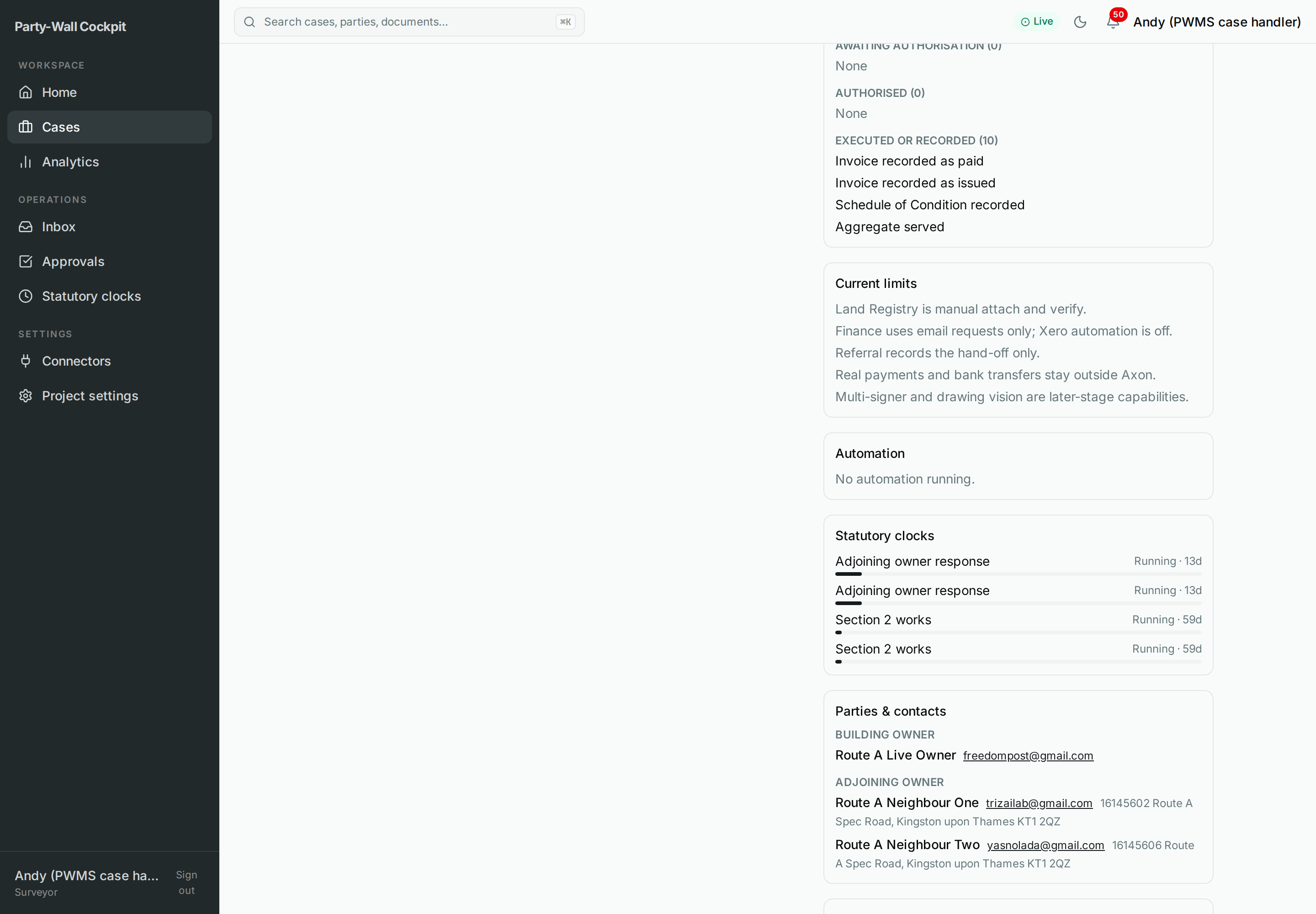 Figure — the Automation panel lists each live workflow. A running workflow offers Pause; a failed one offers Retry, Investigate, Skip and Continue manually.
Work through it in this order:
- Investigate — jumps to the escalations for this case (read-only) so you can see why it stopped. If our engineers have already been notified you will see a "Dev-team ticket filed" badge; to read the ticket id, hover Investigate (its tooltip is the ticket id) — you will need that id if you call a technician (see below).
- Retry — re-runs the failed workflow from where it stopped. This is the right first move for a transient glitch (a momentary network or integration hiccup). Often it just works the second time.
- Skip — stops the stage automation for this case. It does not resume the workflow past the failed step — the automation simply stops, and you carry the case forward yourself with the ordinary Quick actions.
- Continue manually — also stops the stage automation for this case and hands the case to you; from here you drive it yourself with the ordinary Quick actions.
Fresh approval before anything repeats
The panel carries the line: "Fresh approval is required before money or statutory side effects repeat." Retrying or continuing does not silently re-send a notice, re-serve, or re-charge a client — any statutory or money step re-opens an approval gate first, and nothing goes out until you approve it. So it is always safe to press Retry.
Skip and Continue manually both stop the automation
Skip and Continue manually do the same underlying thing — they stop the stage automation for this case. Neither resumes the workflow past the failed step: after either one, the automation is off and you drive the case yourself with the ordinary buttons. Neither can be undone from here. Only use them when you are content to take the case over manually. If in doubt, use Retry or call a technician.
For your technician
The Automation panel controls act on the live workflow behind the case. A failed
stage is a failed pw_cockpit_run_stage execution (e.g. pw_serve_and_track_v1,
pw_invoicing_v1). "Fresh approval required" means the next money/statutory
activity re-opens an approval gate before any side effect repeats — the record
facades stay side_effect_class='internal'. Diagnose with the worker/app-api
logs and the Temporal UI (temporal workflow show <id>); the escalation and the
dev-team ticket id are the fastest way to correlate a UI report with a run.
6. On-screen messages — what they mean¶
6.1 Toasts (the pop-up messages)¶
The Cockpit only pops up a message when something went wrong. A successful action shows a quiet inline confirmation, not a toast — so seeing no pop-up usually means "it worked", not "nothing happened". These are the six you may meet:
| Toast (exact wording) | What it means | What to do |
|---|---|---|
| Session expired — Please sign in again. | Your sign-in timed out while saving. | Nothing was recorded. Sign in again, then redo the action. |
| Not permitted — … (or "You do not have permission…") | Your role or a policy does not allow this action. | You may be in read-only mode or lack the permission. Ask an administrator. |
| Item changed — …refresh and try again. | The case changed since you loaded the screen; your view is stale. | Refresh the page, then redo the action on the up-to-date screen. |
| Conflict — … | The action clashes with the case's current state (e.g. the step is already done, or out of order). | Read the detail. Refresh; the step may no longer be needed. |
| Could not save — … (or "Some details are invalid.") | A field you entered failed validation. | Read the detail, fix the flagged field, and submit again. |
| Action failed — … | The action did not complete for another reason. | Note the exact text, try once more. If it repeats, see call a technician. |
6.2 Exact error text (for searching)¶
These verbatim strings can appear inline on forms and pages. They are listed here so you can search this page for the exact wording you saw on screen.
Sign-in and password
Login failedPassword change failedNew password must be at least 12 charactersPasswords do not match
A panel failed to load
Failed to load the inbox.Failed to load connectors.Failed to load analytics.Failed to load approvals.Save failed.Could not update — try again.
A form field is invalid (fix the flagged field and resubmit)
Required·Name required·Address required·Works description requiredValid email required·Enter an email addressInvalid UK postcodeAt least one adjoining owner is requiredMust be a valid amount·Enter an amount like 1100.00Number required·Enter a whole number from 1 to 365·Enter a number from 0 to 1Must be a Google Drive idEnter valid JSON·Enter a JSON object or array·Enter a JSON array
Access and mode
No access to the Party-Wall project. Contact an administrator.Read-only mode — write commands are disabled.This section is coming in a later release…Queue is empty. Everything is under control.(this one is good news — your Inbox is clear)
7. What happens to a case when a workflow fails¶
Nothing is lost and nothing races ahead. A failed workflow simply stops at its stage: the case does not skip forward, does not send anything, and keeps all its recorded facts. You will usually see an escalation appear in the bell/Inbox and in the Escalations group of the Operator context panel. Any statutory clock that was already running keeps running (the law does not pause because our automation hiccuped — which is another reason to deal with failures promptly). The case stays exactly where it is until you Retry / Skip / Continue manually, or a technician resolves it.
8. Troubleshooting matrix¶
| Symptom | Likely cause | What to do |
|---|---|---|
| A Quick action button is greyed out | An action is already running, or you lack write access | Wait a moment for the previous action to finish; if the whole bar is missing, you are in read-only mode (see next row) |
| The whole Quick actions bar is missing, banner "Read-only mode — write commands are disabled." | You are signed in without write access | Ask an administrator to enable write access for your account |
| "No access to the Party-Wall project. Contact an administrator." | Your account is not on this project | Ask an administrator to add you to the Party-Wall project |
| An approval gate you expected never appeared | The stage has not reached that point yet, or the workflow failed before it | Check the Stage checklist and the Automation panel for a Failed badge (→ §5) |
| The Inbox / bell is empty ("Queue is empty. Everything is under control.") | Nothing needs attention — or no Gmail connector/ingestion is set up | This is usually fine. If you expected leads to arrive, check Connectors (→ §8.2) |
| A connector shows expired / unhealthy | The integration's authorisation or API key lapsed | For a Google connector or Xero, Re-authorise it; for BoldSign, re-enter its API key (→ §8.2) |
| The case will not move, but there is no error | It is waiting, not broken | Work through the check below (→ §8.1) |
8.1 Mandatory check — "the case won't move but there is no error"¶
When a case sits still and nothing has visibly failed, it is almost always waiting on purpose. Check these four, in order, and stop at the first that explains it:
- Operator context › Workflows & waits. Look for a wait badge. If a workflow is waiting, the system is holding for something (a period to elapse, a response) — this is normal. Nothing to fix.
- "Requires your approval (N)" section. An open approval gate blocks the stage until you decide it. Approve or reject it and the case moves on.
- Statutory clocks. A running deadline means the law makes you wait (e.g. a neighbour's response period). This is normal — the case is meant to sit until the clock is met.
- Stage checklist. A red item marked "— blocks progression" is holding the stage. Clear that item.
Escalate to a technician only if none of these four explains the standstill. In practice, one of them almost always does.
8.2 Re-authorising an expired connector (do it yourself)¶
If Google, Xero or BoldSign shows as expired or unhealthy, you can usually fix it without a technician — but how depends on the connector:
- Go to Settings → Connectors (
/connectors). - Find the card flagged as unhealthy and read its "Last error" line — it tells you what went wrong.
- Google connectors and Xero — click Re-authorise. The provider's sign-in/consent screen opens in a new tab; complete it and return. Re-authorise appears only on these sign-in-based connectors. You can also click Test connection to re-check a connector you believe is already fixed (this button is available only while the connector is active).
- BoldSign — there is no Re-authorise button, because BoldSign uses an API key rather than a provider sign-in. Fix a lapsed or broken key by re-entering it: use Add connector and enter a valid BoldSign API key (re-enter the secret). If you do not have a valid key to hand, that is when to call a technician (→ below).
If the card goes healthy, you are done. If re-authorising (Google/Xero) or re-entering the key (BoldSign), and Test connection, still leave it failing, that is a case for a technician (→ below). For the full Connectors tour see Sections tour.
9. Limits and invariants¶
- Messages are error-only. A success shows a quiet inline confirmation, not a pop-up — so "no toast" almost always means the action worked.
- The bell mirrors the Inbox. It shows the top five items, the count caps at "99+", and it has no read/unread and no dismiss — items clear when the situation clears, not when you click.
- Record ≠ serve. Retrying, skipping or continuing never sends, serves or charges without a fresh approval. Nothing leaves the building until you authorise it.
When and how to call a technician¶
Most problems are yours to clear: a transient failure fixed by Retry, a connector fixed by Re-authorise, or a case that is simply waiting. Call a technician when the problem is not one of those:
- a workflow still fails after Retry;
- Re-authorise / Test connection does not fix a connector;
- you see a "Dev-team ticket filed" badge (our engineers are already involved);
- a statutory clock did not start after you recorded service;
- none of the four checks in §8.1 explains a standstill.
Hand over these five things — it lets a technician find the exact run in seconds:
- Case reference — the
PW-XXXXcode (e.g.PW-EZNMGSDP). - When it happened — date and time (e.g. 10 July 2026, 14:54).
- Which screen / panel you were on.
- The exact toast or error text — copy it word for word.
- The dev-team ticket id (when there is one) — if you see a Dev-team ticket filed badge, hover Investigate in the Automation panel to read the id. With no ticket the tooltip just says Open diagnostics and there is no id to hand over.
For your technician
The dev-team ticket id and the case's escalation are the fastest bridge from an
operator's report to a specific run. Start from the worker and app-api logs and
the Temporal UI: temporal workflow show <workflow_id> for the failed
pw_cockpit_run_stage stage-workflow (pw_serve_and_track_v1 /
pw_invoicing_v1), then cross-check side_effect_log and the read-model inbox.
A statutory clock that never started after pw_cockpit_record_service points at
the serve/clock seam rather than the record facade.
10. Related¶
- Overview — the mental model and the "Record ≠ serve" invariant.
- Quick Start — one case end to end.
- Cheat sheet — the one-page printable summary.
- The Case Screen — every panel, button and gate control in detail.
- Scenarios — routes A–D, escalations, referrals, on-hold.
- Sections tour — Home, Inbox, Approvals, Clocks, Connectors, Settings.
- Glossary — party-wall and system terms.