Party-Wall Cockpit — Overview¶
The Cockpit is your control panel for running party-wall matters from first enquiry to closed file — quoting, serving notices, tracking statutory clocks, approving each legal or financial step, and invoicing. This page is the map: what the Cockpit is, who may use it, how the screen is laid out, and the mental model behind a case.
1. What it is and why¶
The Party-Wall Cockpit is a dedicated web application for party-wall case handling. You reach it at its own URL, sign in with your own login, and see a purpose-built interface — nothing else.
It is not the general Axon Console. The Console is the platform-wide operations surface for the whole business (projects, workflows, connectors across every domain). The Cockpit is a single, focused surface for one job: party-wall casework.
This is a different surface from the general Console manuals
Elsewhere in the manuals you may see a page called Cases.md. That describes the general Console Cases screen — a different application, a different login, a different URL. Do not confuse it with the Cockpit's own case screens (documented in Cockpit-Cases.md); the Cockpit's Cases list in the sidebar is toured in Cockpit-Sections.md. When in doubt, check the browser address bar and the wordmark in the top-left corner: the Cockpit always reads Party-Wall Cockpit.
The one idea that governs everything the Cockpit does: Record ≠ serve. When you press a button that sounds like it sends something, the Cockpit records a fact, prepares a draft, or queues an intent. Nothing leaves the building automatically. See §4 and §9.
2. Roles and access¶
When you sign in, your role is Surveyor (Operator). The sidebar shows your role as Surveyor in the user chip at the bottom, directly beneath your name.
A name is not a role
The line above "Surveyor" is your display name — the account you signed in as (for example Andy (PWMS case handler), or Administrator on the demo build). That is a display name, not a role. The only role the Cockpit shows is Surveyor.
Write-mode vs read-only¶
| Mode | What you see | What you can do |
|---|---|---|
| Write-mode (write actions enabled) | Full case screen plus the Quick-actions bar of contextual buttons | Record facts, run stages, respond to approvals |
| Read-only | Same screens, but the entire Quick-actions bar is hidden | View cases, clocks, analytics and history only |
In read-only mode no buttons are greyed-out one by one; instead the whole Quick-actions bar simply does not appear. If you expect to record something and the action bar is missing, you are in read-only mode (a setting of the Cockpit deployment — the same for every account, not a consequence of your role) — see Cockpit-Troubleshooting.md.
Sign-in screens¶
| Screen | What it asks | Notes |
|---|---|---|
| Login | Username (auto-focused) and Password, then Sign in (button reads "Signing in…" while it works) | Card is titled Party-Wall Cockpit. A wrong username or password shows an inline message from the server. |
| Change password | Only when you are required to: Current, New (minimum 12 characters), Confirm, then Change Password or Logout | New password must be at least 12 characters and the two entries must match. |
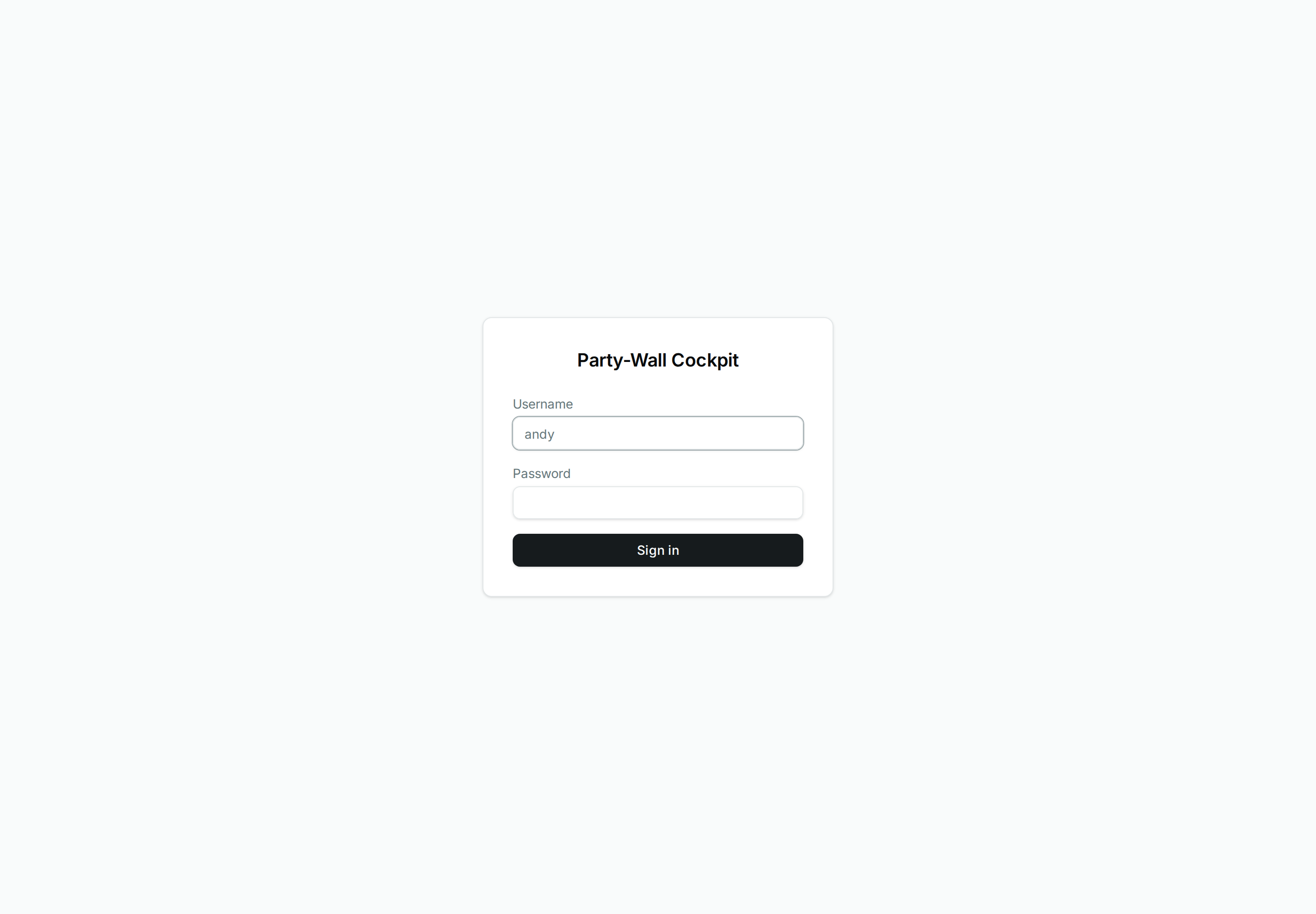 The sign-in screen: username, password, and a single Sign in button under the Party-Wall Cockpit wordmark.
3. Where it is in Cockpit¶
The Cockpit is one screen with a fixed left sidebar and a thin top bar; the middle changes as you move around.
Sidebar (left)¶
The wordmark Party-Wall Cockpit sits at the top. Below it, navigation is grouped:
| Group | Items | Purpose |
|---|---|---|
| WORKSPACE | Home · Cases · Analytics | Your daily landing page, the case register, and read-only KPIs |
| OPERATIONS | Inbox · Approvals · Statutory clocks | Incoming leads, the approval queue, and running legal deadlines |
| SETTINGS | Connectors · Project settings | Integration health and the firm's PWMS configuration |
At the very bottom of the sidebar is your user chip: your name, your role (Surveyor), and Sign out.
Top bar¶
| Control | What it is |
|---|---|
| Search ("Search cases, parties, documents…", ⌘K) | Opens a command palette for quick navigation. It is a jump-to, not a full-text search of records. |
| Live pill (green) | A decorative status indicator that the app is connected. |
| Theme (sun / moon) | Switches between light and dark appearance. |
| Bell (notifications) | Your five most urgent items; the count caps at "99+". Clicking an item jumps to its case. |
| Your name | Shown as text. Sign-out lives in the sidebar user chip, not here. |
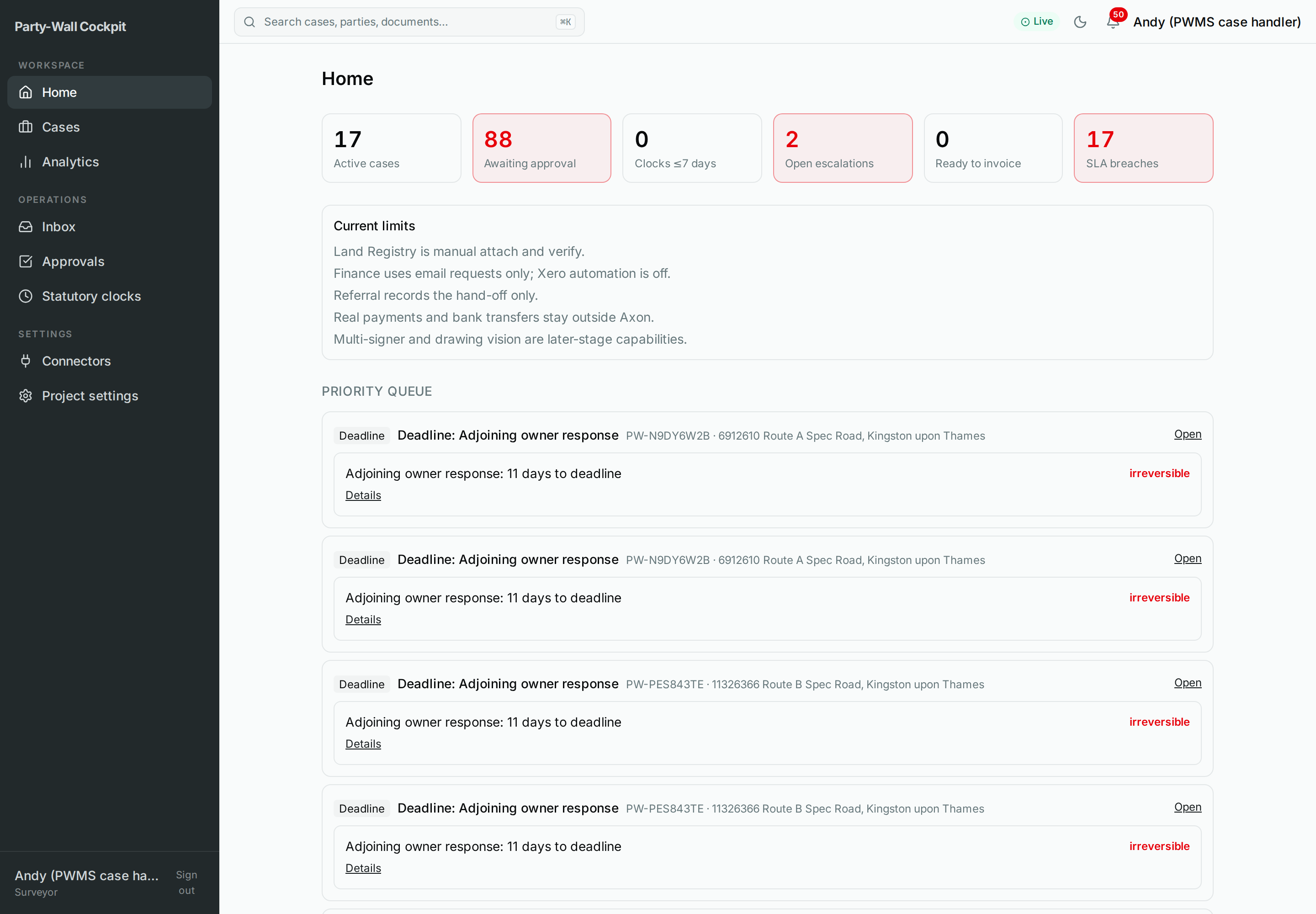 The Home screen: WORKSPACE / OPERATIONS / SETTINGS in the sidebar, the top bar with search, Live pill, theme, bell and your name.
Each section is toured in detail in Cockpit-Sections.md.
4. Concepts (mental model)¶
A party-wall matter moves through a fixed line of stages, shown as a metro-line across the top of every case. Read it left to right:
Lead ─▶ Quote ─▶ Case live ─▶ Determination ─▶ Service ─▶ Routing ─▶ SoC ─▶ Award ─▶ Works ─▶ Invoice ─▶ Closed
                                                                                                          │
                                                              (at any point a matter may branch to) ─────▶ Referred
| Stage | Plain meaning |
|---|---|
| Lead | An enquiry has arrived; not yet a live case. |
| Quote | You prepare and record a fee quote for the building owner. |
| Case live | The client has engaged the firm; the case is active. |
| Determination | The notice sections that apply are settled. |
| Service | Statutory notices are prepared, then served, to each adjoining owner. |
| Routing | Each adjoining owner's response sets a route: A consent · B one agreed surveyor · C surveyor each · D deemed dissent. |
| SoC | A Schedule of Condition records the neighbouring property's state before works. |
| Award | The binding Party Wall Award is prepared and served. |
| Works | The building works proceed. |
| Invoice | Fees are invoiced. |
| Closed | The file is complete. |
| Referred | A branch: the matter is handed off to a specialist and recorded in the Referred register. |
The one idea to hold on to: Record ≠ serve¶
Every action in the Cockpit either records something that already happened, prepares a draft, or queues an intent for a human to authorise. Actions that sound like they send — Email party, Refer to specialist, Request withdrawal — do not send anything. They record the fact, or prepare the document, or queue the request behind an approval gate. Nothing is sent automatically. When you genuinely want a real, outside-world effect (a document actually generated and a statutory clock actually started), that happens only through Run stage, and only after you approve the gate.
For your technician
The Cockpit's per-action buttons map to pw_cockpit_* record-facades that apply synchronously with side_effect_class='internal'; _IRREVERSIBLE_ACTIONS = frozenset(). The only surface that drives real side effects (Drive, notice generation, statutory clock + serve via pw_serve_and_track_v1, invoicing via pw_invoicing_v1) is pw_cockpit_run_stage, and only behind an approval gate.
5. Flows: a day in the Cockpit¶
A typical session, at a glance (full step-by-step lives in Cockpit-Quick-Start.md and Cockpit-Scenarios.md):
- Open Home and read the priority queue — what needs you today.
- Clear urgent items in Statutory clocks and the Approvals queue.
- Open a case, run the next stage, and approve its gate when prompted.
- Record any calls, notes, or documents that arrived.
- Check Analytics to see fees ready to invoice and cases closed.
6. Options reference¶
This page is the map, not the button-by-button reference. Every Quick action, dialog, status badge, panel and toast — with exactly what it records and whether it is reversible — is documented in Cockpit-Cases.md. A one-page memory aid is in Cockpit-Cheat-Sheet.md.
7. Lifecycle: case statuses¶
Alongside the stage line, every case carries a single-letter status:
| Status | Label | Meaning |
|---|---|---|
| P | Prospect | An enquiry; not yet a live case. |
| L | Live | Active; counts towards your active cases. |
| C | Closed | Terminal — the file is closed. |
| X | Abandoned | Terminal — the matter was dropped. |
| H | On-Hold | Paused; can be resumed to its previous status. |
| R | Referred | Handed off; sits in the Referred register. |
C and X are terminal. H is a pause you can lift. See §9 for what cannot be undone from within the Cockpit.
8. Troubleshooting¶
If a button is missing, an action fails, or a delivery shows failed, start at Cockpit-Troubleshooting.md. It lists the exact on-screen messages (for example "Session expired — Please sign in again.", "Not permitted") with their cause and what to do — including when to call your technician.
9. Constraints and invariants¶
The Cockpit is honest about what it does and does not do. The Current limits panel (shown on Home and on each case) states the five standing limits verbatim:
Current limits
- Land Registry is manual attach and verify.
- Finance uses email requests only; Xero automation is off.
- Referral records the hand-off only.
- Real payments and bank transfers stay outside Axon.
- Multi-signer and drawing vision are later-stage capabilities.
Two invariants underpin the whole Cockpit (VISION.md §7):
- Record ≠ serve — nothing is sent automatically. Buttons that sound like they send (Email party, Refer to specialist, Request withdrawal) record, prepare, or queue only. A real effect happens only via Run stage, behind an approval gate you authorise.
- Safety before action. Every statutory or financial step waits at an approval gate for your decision before anything with an outside-world consequence can proceed.
Actions that cannot be undone from here
Close case, Record payment, and Abandon case are recorded facts, not drafts. They cannot be undone from here. Read the confirmation text carefully before you confirm — reversing them, where it is possible at all, is a manual off-system task, not a Cockpit button.
10. Related manuals and canon¶
- Cockpit-Quick-Start.md — the end-to-end tutorial, first enquiry to invoice.
- Cockpit-Cheat-Sheet.md — the one-page memory aid.
- Cockpit-Cases.md — the reference for every button, dialog, status and panel.
- Cockpit-Scenarios.md — how-to recipes for common situations.
- Cockpit-Sections.md — a tour of each screen and its navigation.
- Cockpit-Troubleshooting.md — symptoms, causes, and when to call your technician.
- Glossary.md — party-wall and system terms in plain English.
- Canon: CONCEPT-DASHBOARD-PARTY-WALL.md, SPEC-PULT-CASE-PARITY.md, VISION.md §7.